

Virtual Firewall
Bulk Changes and Moving Rules with CSV
Instead of changing port forwarding rules one by one, you can select several and change them together, export all your rules to a CSV file that opens in Excel, and add rules in bulk from a CSV file.
Selecting rules
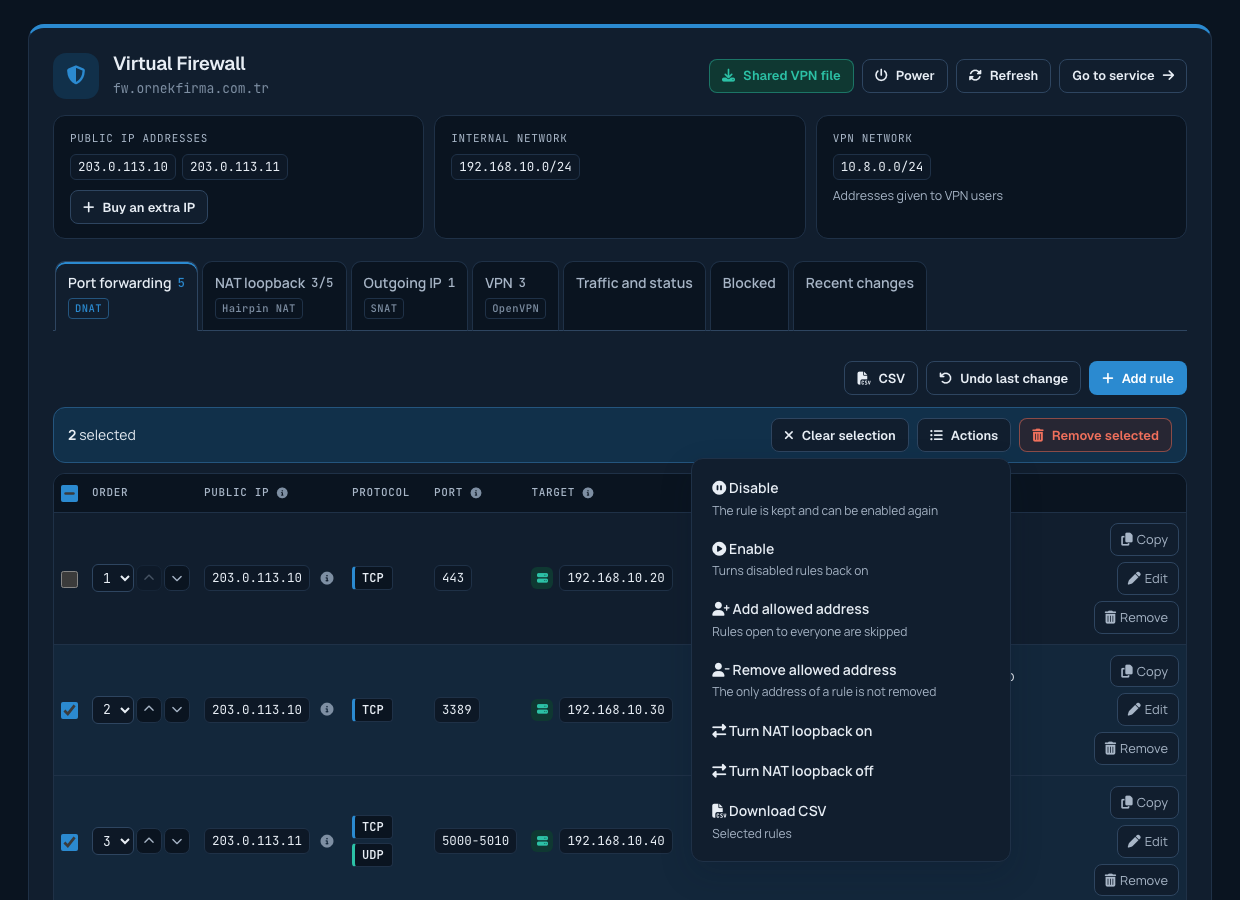
On the Port forwarding tab each row starts with a checkbox; the box in the header selects all rules. When you select rules, a bar above the table shows how many you selected. Clear selection removes the selection.
What you can do with selected rules
- Remove selected: removes all selected rules at once.
- Disable: the rules are not deleted, but connections to these ports are not forwarded until they are enabled again. Useful during server maintenance or to close a port temporarily. Disabled rules appear faded in the list.
- Enable: turns disabled rules back on. If another rule using the same port has been added in the meantime, that rule is not enabled.
- Add / remove allowed address: adds an IP address or network to, or removes it from, the allowed sources of all selected rules. Addresses are not added to rules open to everyone, and a rule's only address is not removed; skipped rules are listed after the change.
- Turn NAT loopback on / off: changes access from the internal network only for the selected rules.
- Download CSV: exports only the selected rules.
You are asked to confirm before removing, disabling, enabling and address changes. Each bulk change is applied and verified as a single change; Undo last change reverses all of it together.
Exporting rules to CSV
From the CSV menu at the top of the tab, choose Download all rules to save your rules to a file. The file opens directly in Excel; the columns are public IP, protocol, port, target IP, target port, allowed sources, description, NAT loopback, status and who created the rule. You can use it to keep a copy of your rules or share a list with your team.
Adding rules from a CSV file
- From the CSV menu, download the empty template with Sample file, or use a file you got with "Download all rules". Each row is one rule; several ports or allowed addresses are separated by spaces.
- Choose your file with Upload from a CSV file. A file can contain at most 100 rules.
- A preview opens first; nothing is added at this stage. Each row is checked like a rule added from the panel: the public IP must belong to your firewall, the target must be in your internal network, the port must not be used by another rule or another row of the file, and your rule limit applies. Each row shows "Can be added" or the reason for the error.
- If you are moving rules from another firewall, use Public IP for all rules to replace the public IP in the file with this firewall's address.
- When you click add, the valid rows are added in a single change and verified. If you are not happy with the result, Undo last change removes all the added rules.
If you are unsure about the file format, we recommend opening the sample file or the file of your own rules first and filling it in the same way.
