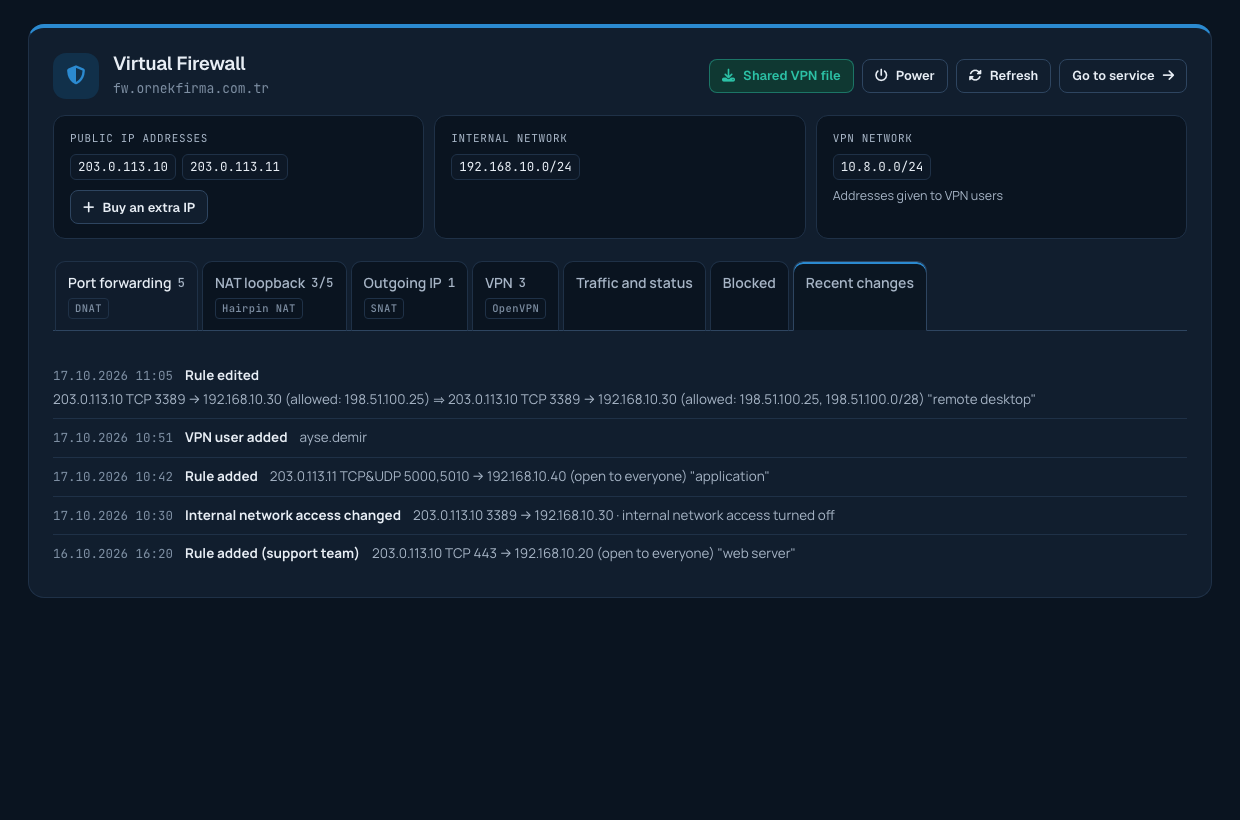
Virtual Firewall
Change Verification, Undo and Change History
Every change you make to port forwarding and outgoing address rules is applied in a safe way, so that it cannot cut off your access by mistake. VPN user actions and the internal network access setting do not affect access to the firewall, so they are applied immediately.
How is a change applied?
- The change is applied to your firewall.
- The panel connects to the firewall again and checks that the change was applied correctly.
- If the check succeeds, the change becomes permanent.
- If it cannot be verified (for example, the change cut off access to the firewall), the firewall returns to its previous state by itself shortly afterwards. You then see a "the change is being rolled back" message.
This takes from a few seconds to half a minute. While a change is being verified, a second change cannot be made; you can try again a few seconds later.
Undoing the last change
The Undo last change button on the Port forwarding tab reverses the last change made to port forwarding rules within the last 24 hours:
- An added rule is removed; a removed rule comes back with the same values.
- An edited rule returns to its previous values (including the NAT loopback setting).
- A rule whose position changed returns to its previous position.
- Bulk changes are undone as a whole: rules removed together come back, rules added from a CSV file are removed; for disabling, enabling, adding or removing allowed addresses and NAT loopback changes, only the rules that actually changed return to their previous state.
Undoing is applied and verified like any other change. Only the most recent change can be undone, and an undo itself cannot be undone. VPN user actions, IP blocks and outgoing rules are not undone with this button.
Change history
The Recent changes tab lists the latest changes made from the panel to your firewall, with their dates: adding, editing, removing rules, order changes, bulk changes, undo, internal network access changes, VPN user actions, IP blocks, extra IPs and power actions. Changes made by our team on your behalf are marked "(support team)". You can also see a single rule's history with the History link on its row in the port forwarding table.
Every action is recorded with the user who made it, the date and the IP address. If more than one user is defined on your account, a user needs the "manage services" permission to change the rules; users without it can only view them.