

Virtual Firewall: Connecting to the VPN (Windows, macOS, iOS, Android, Linux)
To connect to the VPN you need two things: the configuration file (.ovpn) and a username and password. The configuration file is the same for all users; the username and password are asked when connecting.
1. Download the configuration file
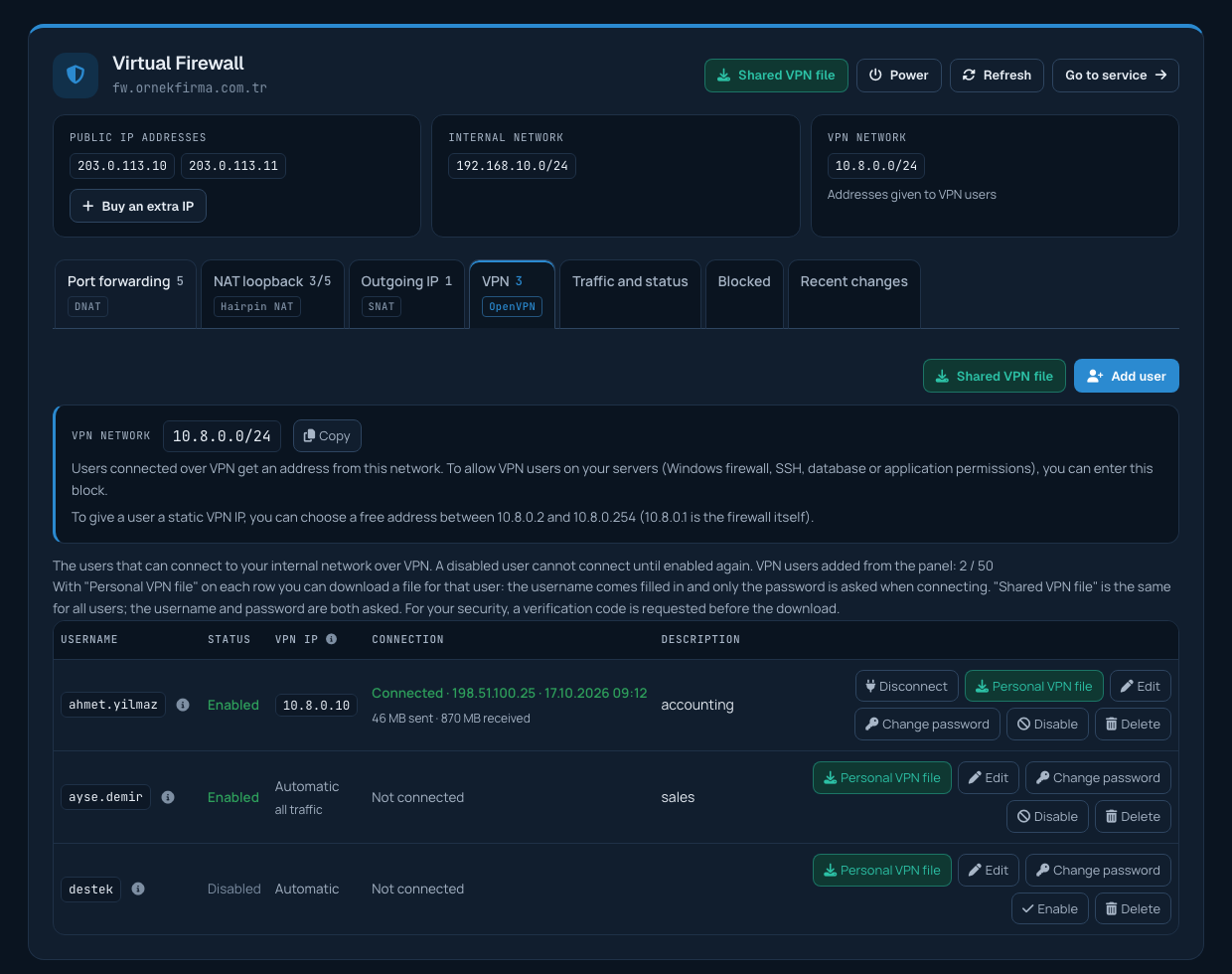
On the Services > Firewall page, click Download configuration file on the VPN users tab (the same file is also on your service's page). For your security, a verification code is sent to your mobile phone (or, if needed, your email address); after you enter it, the file downloads. The file is created automatically with your firewall's current settings. It gives access to your network; keep it only on the devices that will connect.
2. Install the OpenVPN app
- Windows and macOS: download and install "OpenVPN Connect" from the official OpenVPN website.
- iPhone and iPad: install "OpenVPN Connect" from the App Store.
- Android: install "OpenVPN Connect" from Google Play.
- Linux: install the openvpn package with your distribution's package manager (example:
sudo apt install openvpn).
3. Import the file and connect
- Windows, macOS, iOS, Android: in OpenVPN Connect, choose the .ovpn file under "Upload File", or open the file with the app. Enter the username, choose whether to save the password and connect.
- Linux: run
sudo openvpn --config file-name.ovpn; the username and password are asked.
Once connected, the user's status shows "Connected" on the VPN users tab.
Troubleshooting
- Authentication failed: check the username and password and make sure the user is "Enabled". If needed, set a new password with Change password.
- Connected but cannot reach internal servers: the internal server's own firewall (for example Windows Firewall) may not allow connections from the VPN subnet.
- Still going out to the internet with my own connection: this is normal if the "route all traffic through the VPN" option is off for the user; turn it on to go out with your fixed IP.
- Cannot connect at all: the network you are on (hotel, public network) may be blocking VPN connections. Try from another network or open a support ticket.
