

Virtual Firewall
Adding VPN Users, Passwords and Static IPs
VPN users are people who can connect to your internal network over the internet with an encrypted connection (OpenVPN). You manage them on the VPN tab.
Adding a user
Click Add user:
- Username: 3 to 32 characters; lowercase letters, digits, dots and hyphens can be used (example: john.smith).
- Password: at least 10 characters; it must contain letters and digits. The Generate button creates a strong password.
- Description: an optional note (example: accounting).
- Static VPN IP address: optional. The user gets the same address every time they connect, so you can define permissions for this user on your internal servers. The address must be in the block shown in the VPN network box at the top of the tab; the first address of the block is reserved for the firewall itself.
- Route all internet traffic of the user through the VPN: if ticked, everything the user does on the internet while connected goes out through your firewall with your public IP address. If not ticked, only traffic to your internal network uses the VPN; this is enough for most uses.
When the user is added, the username and password are shown once; you can take them with Copy and send them to the user. The password is not shown again.

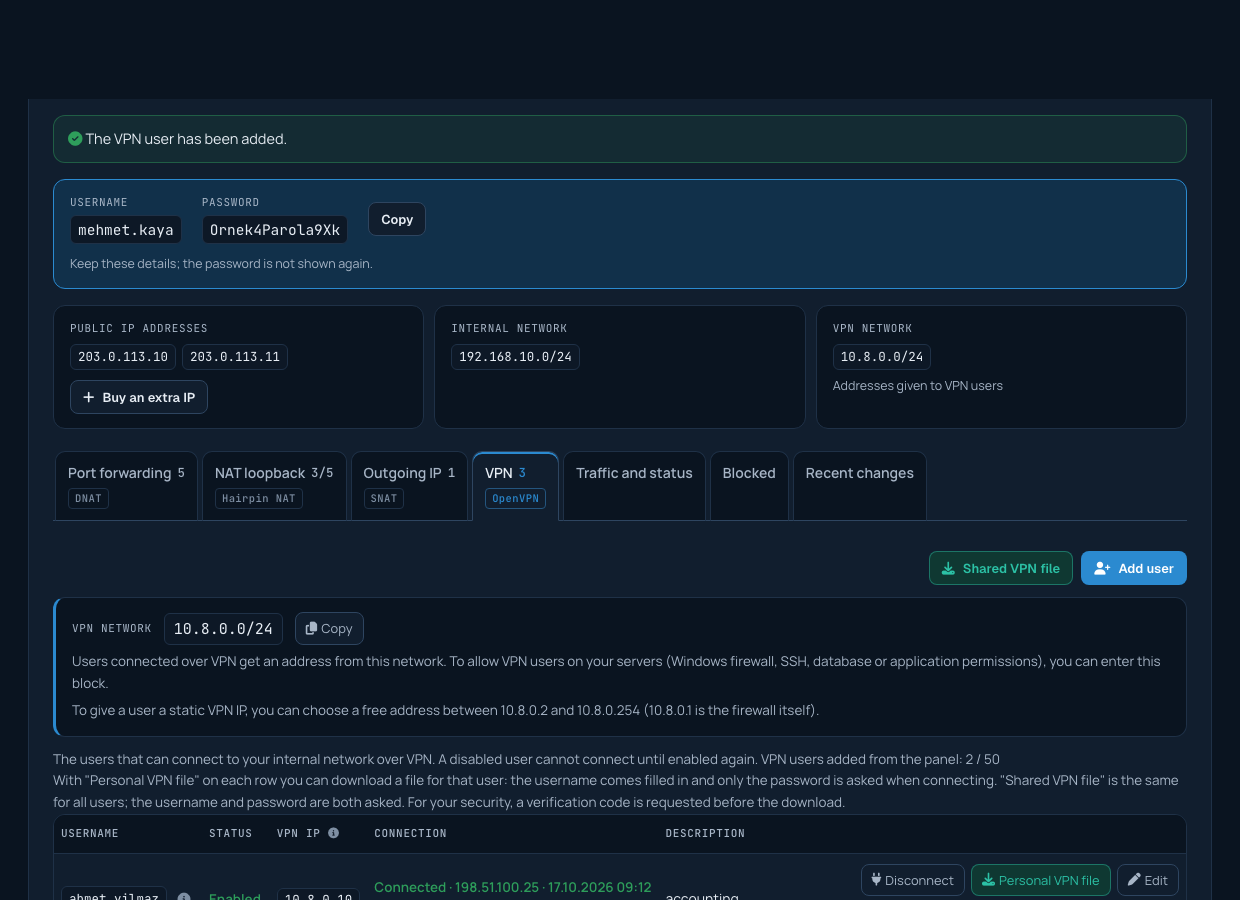
Managing a user
- Edit: changes the static IP, the all-traffic option and the description.
- Change password: sets a new password; the old one stops working immediately.
- Disable / Enable: a disabled user cannot connect until enabled again. Useful for cutting an employee's access temporarily.
- Delete: removes the user completely.
- Personal VPN file: downloads the configuration file for that user; the username is already in the file and only the password is asked when connecting.
Users defined earlier by our team also appear in the list and can be managed the same way.

VPN network
The VPN network box at the top of the tab shows the address block given to users who connect over VPN (example: 10.8.0.0/24); you can take it with Copy. To allow VPN users on your internal servers (Windows Firewall, SSH, database or application permissions), you can enter this block. To allow only a specific user, give that user a static VPN IP address and allow only that address on the server.
Connection status
The Connection column shows whether the user is connected right now and, if so, from which address, since when and how much data was sent and received on this connection. Click Refresh to see the current state.
The Disconnect button on a connected user's row ends the user's current connection. The user is not disabled and can connect again; to stop the user permanently, disable the user.
Number of users
The number of users you can add from the panel is shown on the tab. For more, you can open a support ticket.
How users connect is explained in the article "Connecting to the VPN".
