

Virtual Firewall: Adding and Editing Port Forwarding Rules
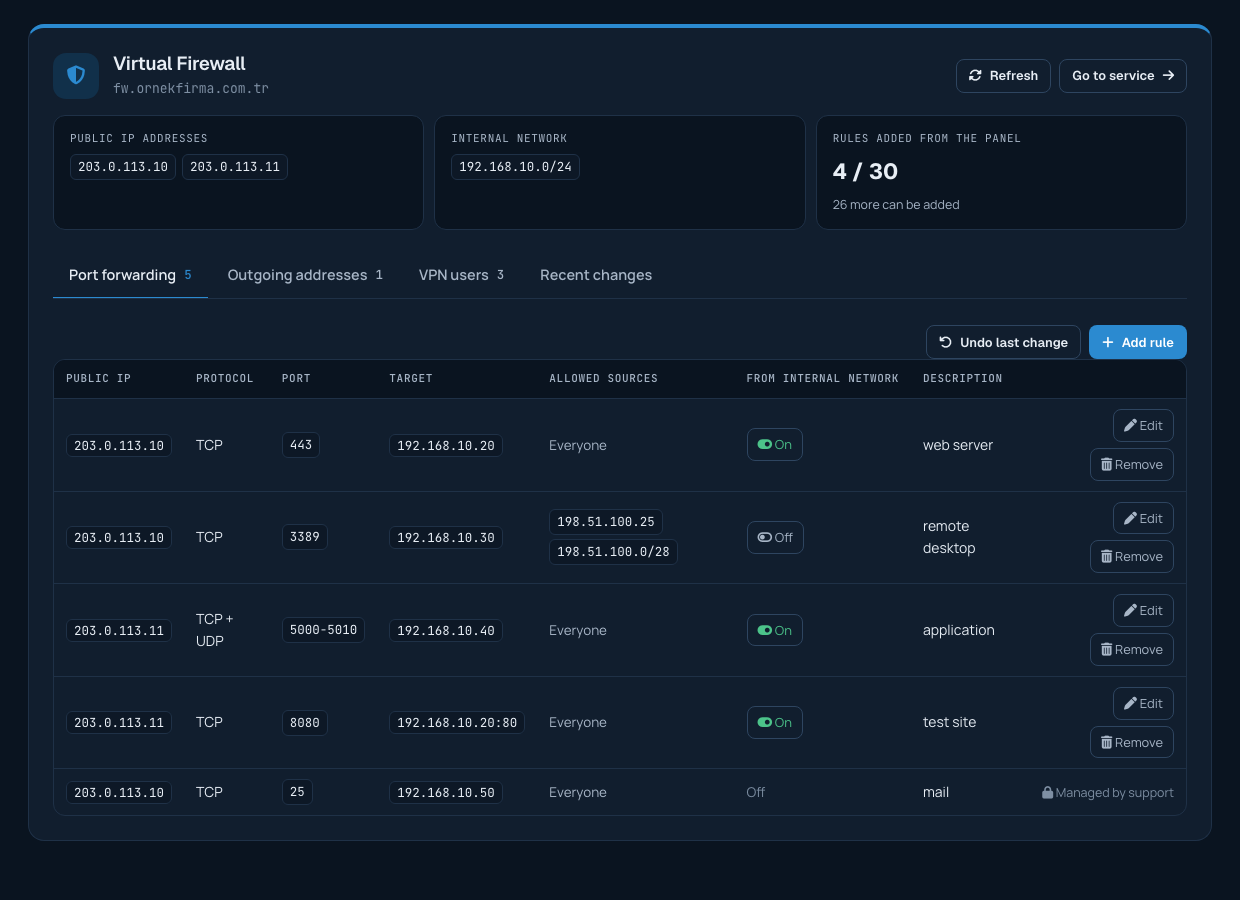
Port forwarding passes a connection that arrives from the internet at a port of your public IP address to a server in your internal network. For example, you can forward connections arriving at port 443 of your public IP to your web server in the internal network.
Adding a rule
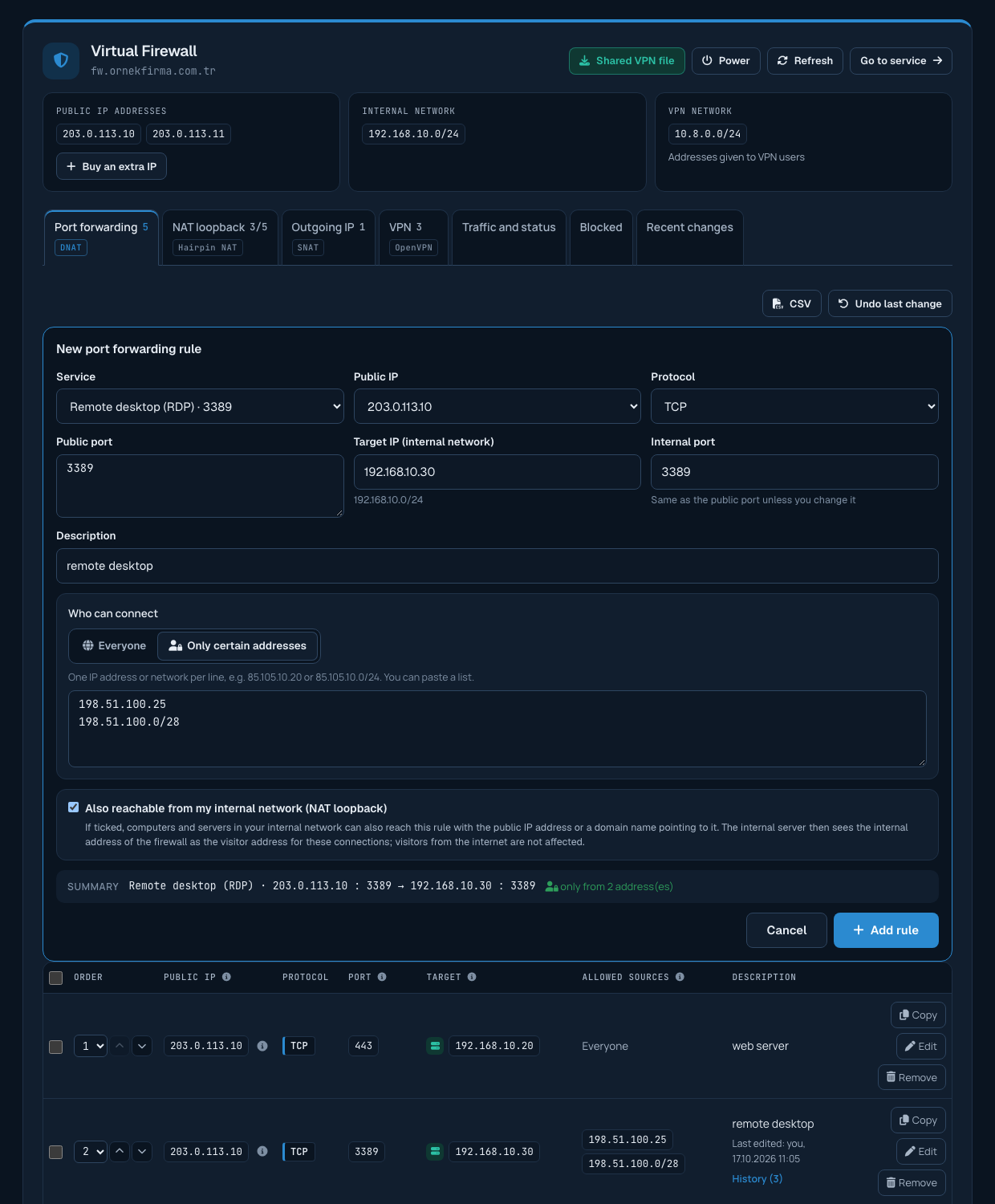
In the client area, open Services > Firewall. On the Port forwarding tab, click Add rule and fill in the form:
- Public IP: one of the public IP addresses assigned to your firewall.
- Protocol: TCP, UDP or both. TCP is enough for websites, remote desktop and SSH.
- Public port: a single port (443), several ports separated by commas (80, 443) or a range (5000-5010). A range can contain at most 1000 ports; a rule can have at most 15 ports or ranges.
- Target IP (internal network): the internal address of the server the connection is passed to. Your internal network is shown at the top of the page (example: 192.168.13.0/24).
- Target port: if left empty, the same port is used. To use a different port, the public port must be a single port; for example, you can forward public port 8080 to port 80 of the internal server.
- Allowed source IP addresses: if left empty, the port is open to everyone. See the article "Opening a Port Only to Certain IP Addresses".
- Description: a short note to recognise the rule (example: web server).
- Also reachable from my internal network (NAT loopback): ticked by default. See the article "Access from Your Internal Network (NAT Loopback)".
When you click Add rule, the rule is applied to your firewall and verified. This may take up to half a minute.
Rules that cannot be added
- On the same public IP and protocol, a port already used by another rule cannot be forwarded again. You can remove that rule first or choose another port.
- On your primary public IP, the ports reserved for managing the firewall itself (22 and 10443) cannot be forwarded.
- The number of rules you can add from the panel is shown in the "Rules added from the panel" box at the top of the page. When you reach the limit, you can open a support ticket to raise it.
Editing a rule
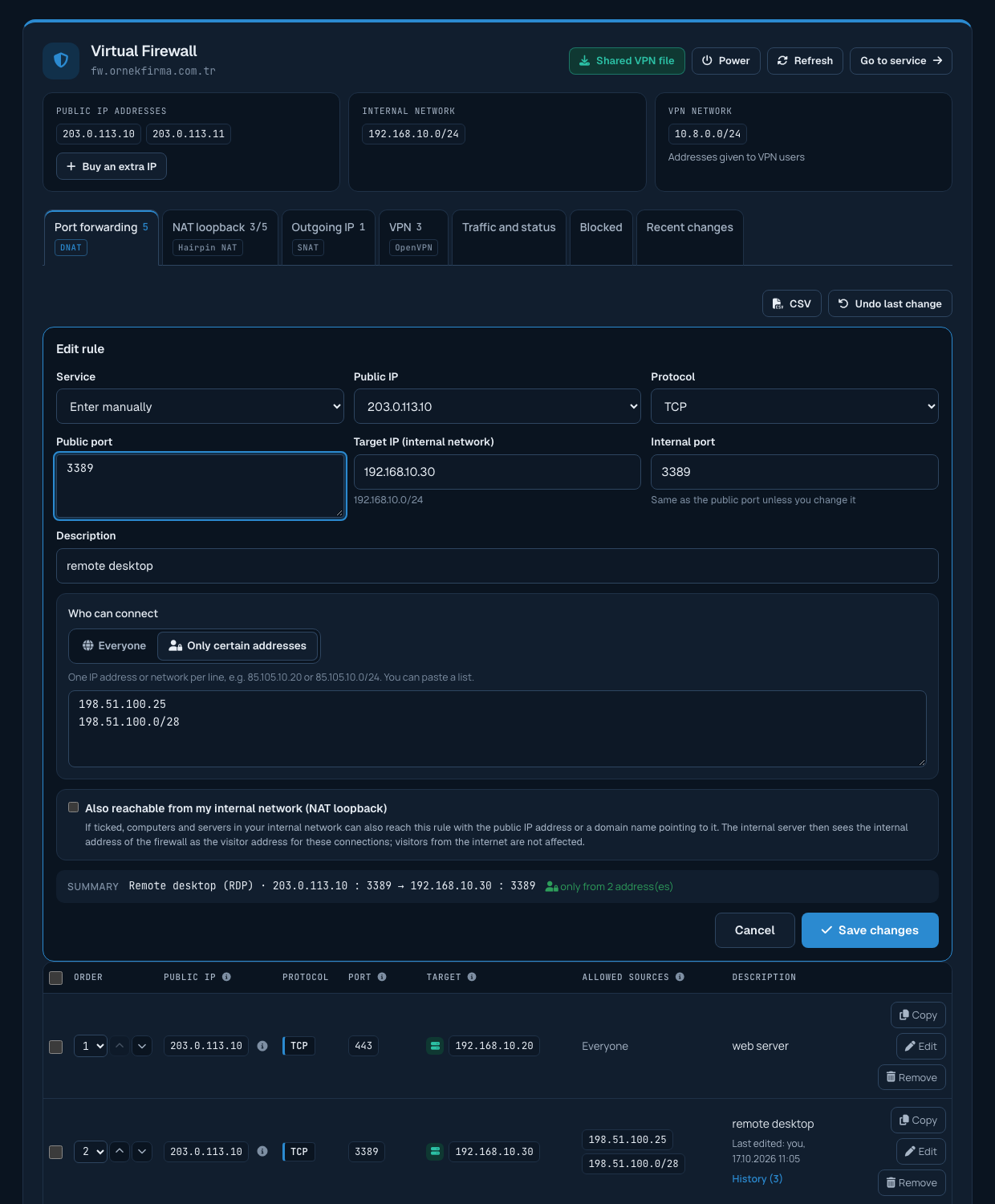
You can change a rule you added from the panel without deleting it. Click Edit on the rule's row and the form opens with the rule's current values. Make your changes and click Save changes; the rule is updated in place and verified.
Removing a rule
Click Remove on the rule's row and confirm. Connections arriving at that port are no longer forwarded.
Rules marked "Managed by support"
Rules defined by our team are shown locked; you cannot change or remove them from the panel. You can open a support ticket for a change.
