

Verinomi Panel: IP Management, Reverse DNS and Blacklist Check
On the Services > IP management page, you can manage reverse DNS (rDNS) records for your servers' IP addresses, view traffic graphs, see the change history and check whether an IP address is on spam blacklists.
Which IP addresses are listed?
The IP addresses of your active or suspended server services are listed, grouped by service. Shared hosting, domain, e-mail and SSL services use shared IP addresses, so they do not appear here. If you have many IP addresses, you can search for an IP or a service with the search box at the top.
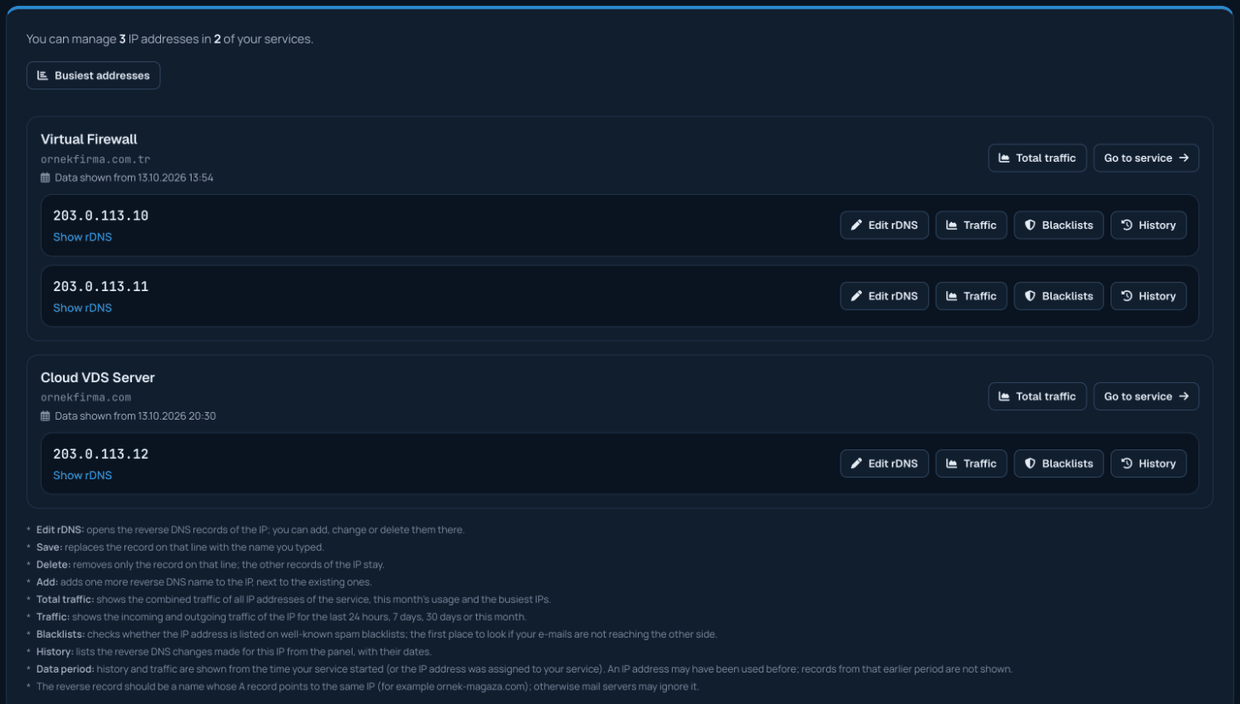
Local network addresses (e.g. 10.x, 192.168.x) are listed for information only; reverse DNS, traffic and history are not available for them. A shared address used by several services is shown under the service where the actions are carried out. If temporary protection has been applied to one of your IP addresses because of an attack, its row shows an Attack protection label and a notice appears at the top of the page.
Reverse DNS (rDNS)
Reverse DNS shows which name an IP address corresponds to. It is especially important if you send e-mail from your server; many mail servers reject messages from addresses that have no reverse DNS record.
- Click the Edit rDNS button on the IP row.
- Enter the full name in the Reverse DNS name field (for example: mail.examplecompany.com) and click Add.
- To change an existing record, enter the new name and click Save; to delete it, click Delete.
It can take a few hours for the change to be visible everywhere. If the name you entered does not currently resolve to that IP address, a note appears; the record is still saved, but for e-mail the name's A record in DNS must also point to this IP. You can add more than one reverse record to an IP; for addresses that send e-mail, using a single record is the safer choice. If you make many changes in a short time, you will be asked to wait for a while.
Reverse DNS records are not read when the page opens; to see them, click the Show rDNS button.
Traffic
The Traffic button on the IP row shows that address's incoming and outgoing traffic in a graph. You can choose Last 24 hours, Last 7 days, Last 30 days or This month as the period. The average, peak and 95th percentile values are shown below the graph. The Total traffic button in the service header shows the total for all of that service's IPs and the addresses with the most traffic. If you have more than one IP address, Busiest addresses gives the ranking for the last 24 hours.
Blacklist check
The Blacklists button on the IP row checks whether your address is listed on 10 well-known spam blacklists (such as Spamhaus, SpamCop and Barracuda). If it is listed, your e-mails may be rejected; the result includes a link to that list's removal page and what you need to do. The result is kept for 1 hour; you can check again with Check again after at least 10 minutes. The check is only available for IPv4 addresses.
History
The History button lists the reverse DNS changes made on that IP address, with their dates. Records are shown from the date your service started.
