

Verinomi Panel: Internal Transfer (Moving Services and Domains to Another Account)
Internal transfer lets you move your services and domains to another Verinomi client account. For example, you can use it to hand a project over to your customer or to move things between company accounts. The transfer is completed once both the sender and the recipient confirm it, each with their own SMS code. Only the account owner can make an internal transfer.
What can be transferred?
- Active services, together with their add-ons and SSL orders
- Active domains
You can send up to 50 items at a time. Past receipts and support tickets stay with the sender; the next renewal receipt is issued to the new owner. Both accounts must use the same currency.
An item cannot be transferred in the following cases; the reason is shown next to the item in the list:
- The item is not active
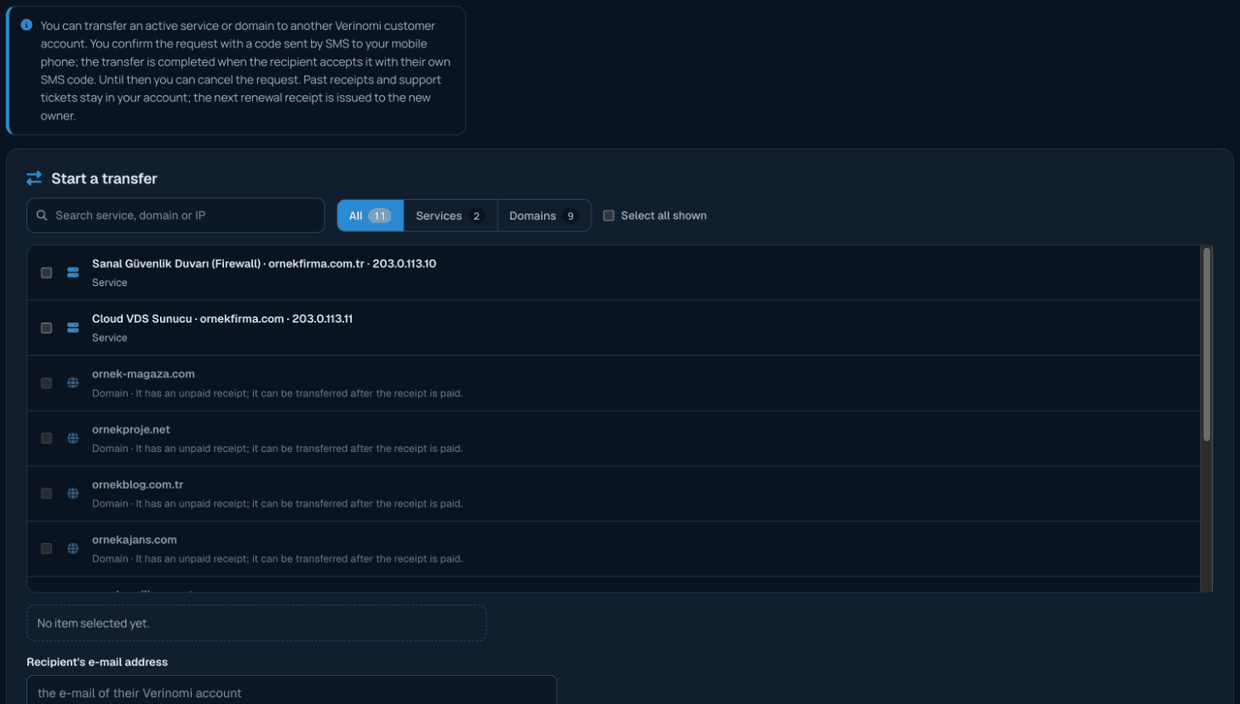
- The item or one of its add-ons has an unpaid receipt (it can be transferred once the receipt is paid)
- There is a cancellation request for the service
- There is another pending internal transfer request for the item
- Your account does not have a valid Turkish mobile number, or your number was changed in the last few days (for your security, internal transfers are put on hold for a while after a number change)
Sending a transfer
- Open the Account > Internal transfer page. You can also start from the Internal transfer button on a service or domain page.
- Tick the items you want to transfer. You can narrow the list with the search box and the All / Services / Domains buttons.
- In the Recipient's e-mail address field, enter the e-mail address of the recipient's Verinomi account.
- Click Send confirmation code. A 6-digit code is sent to the mobile number on your account; the SMS briefly says what will be transferred and to which account.
- Enter the code in the Code sent by SMS field and click Confirm and create the request.
Once the request is created, the recipient is notified. Until the recipient accepts, the items stay with you, and you can withdraw the request with Cancel request in the Requests waiting for the recipient section. If the recipient does not accept within 7 days, the request expires automatically.
For security reasons, up to 8 different recipient addresses can be tried within an hour. If there is no client account at the address you entered, a notice tells you so.
Accepting an incoming transfer
When a transfer request comes in for you, a notification appears on the client area home page, on the bell in the top bar and on the Account heading in the menu; if you have turned on information SMS messages, you also get an SMS.
- Review the request in the Transfers waiting for your approval section on the Account > Internal transfer page. For security, the sender's name is partly hidden.
- To accept, click the Accept all button; a code is sent to your mobile number.
- Enter the code and click Confirm and take over. The items are now in your account.
Before acceptance, all items are checked again; if any of them cannot be transferred (for example, because it has an unpaid receipt), none of them are moved and the reason is shown. You can decline a request you do not want with Decline; no code is needed for this.
History
In the Past transfers section on the same page, you can see the transfers you sent and received along with their status (Completed, Declined, Cancelled, Expired). Each step is also recorded in your activity history.
The time limits and other limits for confirmation codes are explained in the Mobile Number, SMS Codes and Information Messages article.
