

Verinomi Panel: Two-Step Verification (SMS and Authenticator App)
When two-step verification is on, you are asked for a one-time code after your password when you log in to the client area. This way, no one can get into your account even if your password falls into someone else's hands. You can get the code in two ways: by SMS to your mobile phone, or with an authenticator app on your phone. This article explains how to set up both, how they work at login, the backup code and how to turn two-step verification off.
Two-step verification is turned on separately for each user. Users you add to your account turn it on for their own logins themselves.
Which method should I choose?
- SMS code: a 6-digit code is sent to your mobile number at every login. You do not need to install an app. It works only with Turkish mobile numbers.
- Authenticator app: an app such as Google Authenticator, Microsoft Authenticator or Authy generates a new code on your phone every 30 seconds. It works even with no signal or when you are abroad. We recommend it because it is more secure.
Turning it on
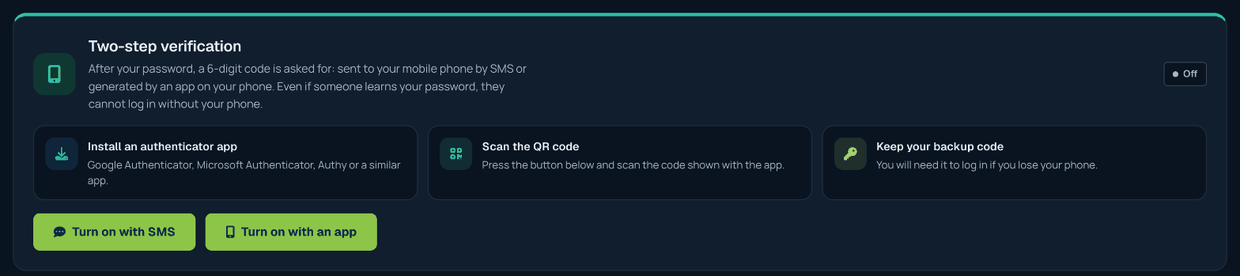
In the Two-step verification section of the Account > Security page there are two buttons: Turn on with SMS and Turn on with an app. When you click one, the setup window opens with the method you chose; continue with Continue.
SMS code
- The Mobile number field is already filled in with the number on your account; if you like, you can enter another Turkish mobile number. Login codes will be sent to this number.
- Click Send code. A 6-digit code is sent to the number; the code is valid for 5 minutes.
- Enter the code in the Code sent by SMS field and click Verify and turn on.
- A backup code is shown on the screen. Save this code somewhere safe (see the "Backup code" section below).
During setup you need to wait 60 seconds before asking for a new code; at most 3 setup codes are sent to a number per hour.
Authenticator app
- Install an authenticator app such as Google Authenticator, Microsoft Authenticator or Authy on your phone (you can download it free from your app store).
- A QR code appears in the setup window. In the app, tap the option to add a new account (usually the + icon) and scan the QR code with your phone's camera. If you cannot scan the QR code, you can enter the key shown in the window into the app by hand.
- The app shows a 6-digit code for "Verinomi". Enter this code in the Enter authentication code field in the window and confirm. The code changes every 30 seconds; if it is about to expire, wait for the next one.
- A backup code is shown on the screen. Save this code somewhere safe.
If the code does not match, make sure your phone's clock is set automatically; authenticator apps rely on the correct time.
Backup code
The backup code shown at the end of setup lets you get into your account when you cannot reach your phone (if you lose it, change your number or delete the app). Keep it as you would a password: you can save it in a password manager, or write it on paper and keep it somewhere safe. The backup code can be used only once; when you log in with it, you are shown a new backup code, so save that one too.
Code at login
After you enter your email address and password, the Two-step verification screen opens:
- With the SMS method, a code is sent to your registered number as soon as the screen opens. Enter the code and click Verify and sign in. If the code does not arrive, you can use the Send a new code link after 60 seconds.
- With the app method, enter the 6-digit code shown in your app at that moment.
- If you cannot reach your phone, you can use your backup code with the Login using Backup Code link.
Changing the method or number
To change the method (SMS or app) or the number SMS codes are sent to, simply turn two-step verification off and turn it on again with the new method. Do the same with the app method when you move to a new phone.
Turning it off
On the Account > Security page, click Turn off two-step verification, enter your account password and confirm. Turning it off is recorded, and you will not be asked to turn it on again; you can turn it back on whenever you like. Even while it is off, a separate confirmation code is required for critical actions such as getting a transfer code, removing a transfer lock, internal transfers, changing your login email and downloading a VPN file.
If you cannot reach your codes or your backup code
If you can reach neither your authenticator app (or SMS number) nor your backup code, you can use the You can remove two-step verification with an SMS code and an e-mail confirmation. link at the bottom of the screen that asks for the code at login:
- Enter your account's email address and the mobile number verified on your account, then click Send code.
- Enter the 6-digit code sent to your number and click Verify code.
- An email with the subject "Confirm removing two-step verification" is sent to your account's email address. Open the Confirm removal link in the email (it is valid for 30 minutes and can be used once).
- On the page that opens, click Remove two-step verification. You can then log in with your email address and password; your password does not change. We recommend turning two-step verification on again after you log in.
This option works only for the account owner, and only if the account has a verified mobile number that has not been changed in the last few days. The same message is shown even if the details do not match; if no code arrives, the details may not match. After the removal, an information SMS is sent to the number on your account. If you can reach neither your email nor your phone, you can open a support ticket; our team will verify your identity and help you.
The verification window at first login
If you have never turned on two-step verification, a window suggesting it appears when you log in to the client area. You can turn it on, or tick that you accept the responsibility and skip it with No thanks, continue; your choice is recorded and the window will not appear again. See Mobile Number, SMS Codes and Information Messages for details.
