

Account Security: SMS Verification, Two-Step Verification and Information Messages
To protect your account, we send a one-time code to your mobile phone by SMS at certain steps. This article explains mobile number verification, two-step verification, which actions ask for an SMS code, how to change your number and the information messages, step by step. All settings are on the Account > Security page of the client area.
Why do we ask for SMS verification?
Even if your password falls into someone else's hands, critical actions such as moving your services to another account or transferring your domain to another provider cannot be done without the code sent to your phone. Codes are only sent to the verified number on your account. Verinomi staff will never ask you for these codes by phone or e-mail; please do not share them with anyone.
Verification at first sign-in
If your account has no verified mobile number, a verification window opens when you sign in. It has two steps:
- Verify your mobile number. A 6-digit code is sent to the number on your account; once you enter it, your number is verified. If the number is wrong or you no longer use it, you can enter your new number in the same window. This step is required.
- Turn on two-step verification. You can turn it on with SMS or with an authenticator app (explained below). If you do not want it, you can tick that you accept the responsibility and continue with No thanks, continue. Your choice is recorded and the window does not ask again; you can turn it on later on the Security page at any time.
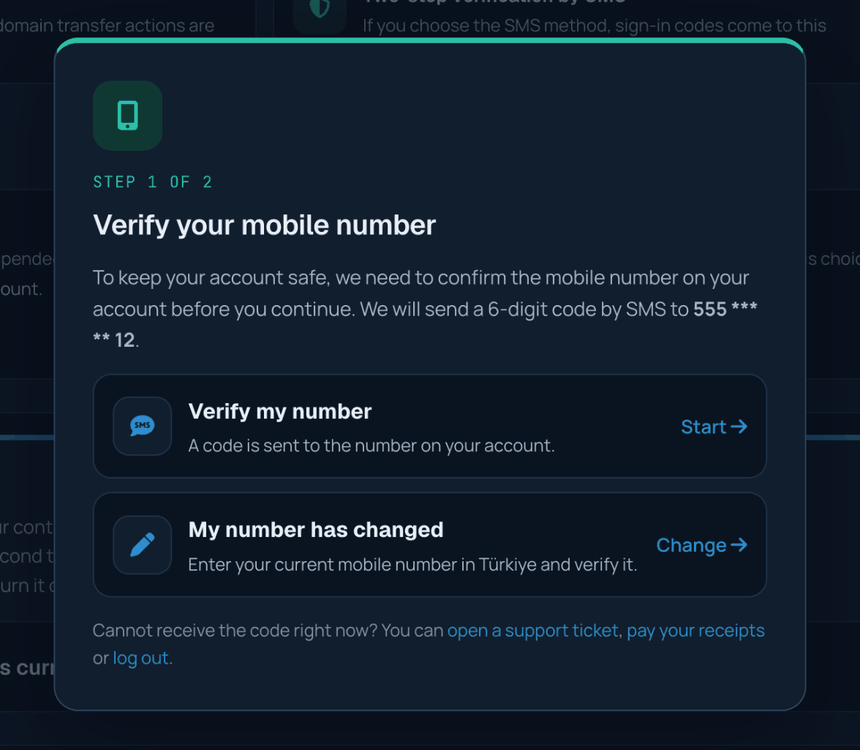
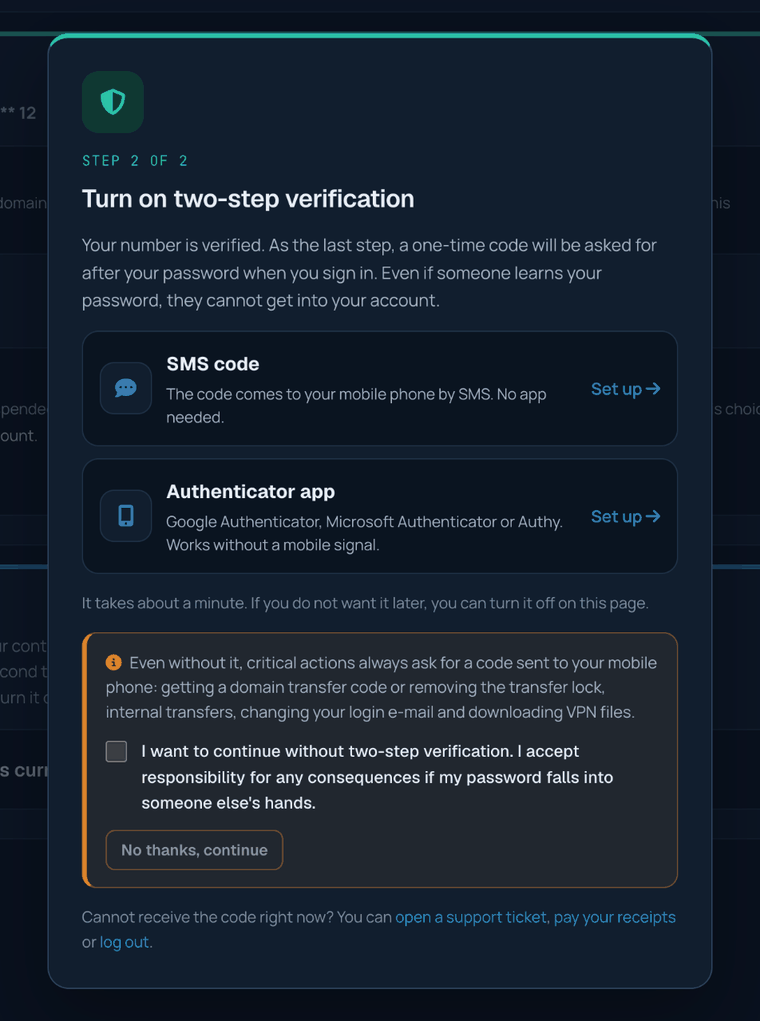
Until verification is complete, most of the client area is closed. Meanwhile you can open a support ticket, view and pay your receipts, and sign out.
Two-step verification
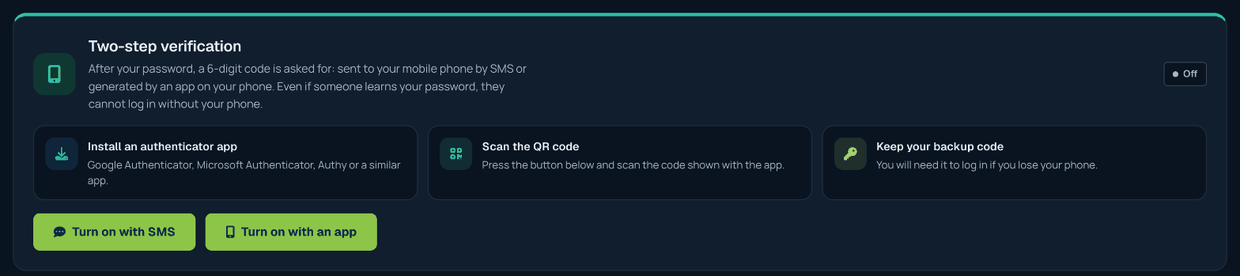
With two-step verification on, a code is asked after your password when you sign in. So even if your password falls into someone else's hands, your account cannot be accessed. You can choose one of two methods:
- By SMS: a 6-digit code is sent to your verified number at each sign-in. No extra app is needed.
- With an app: an app such as Google Authenticator, Microsoft Authenticator or Authy produces a new code on your phone every 30 seconds. It needs neither internet nor SMS. During setup you scan the QR code on the screen with the app. Keep the backup code you are given somewhere safe; if you lose your phone, you need it to sign in.
To turn it on or off, use the Two-step verification section on the Account > Security page.
If you cannot reach your codes
If you cannot reach your authenticator app or backup code, you can click the You can remove two-step verification with an SMS code and an e-mail confirmation link below the screen that asks for the code at sign-in. You enter your account e-mail address and verified mobile number; an SMS code is sent to your number and, if the code is correct, a one-time link is sent to your e-mail address (valid for 30 minutes). When you open the link and confirm, two-step verification is turned off; your password does not change. If you can reach neither your e-mail nor your phone, you can open a support ticket.
Which actions ask for an SMS code?
For the following actions an additional code is sent to your phone, whether or not two-step verification is on:
- Internal transfer: when sending a service or domain to another Verinomi account and when accepting one sent to you. The SMS briefly states what is being moved and to which account.
- Moving a domain to another provider: to view the transfer (EPP) code and to remove the transfer lock.
- Firewall VPN file: to download the OpenVPN configuration file.
- Changing your sign-in e-mail and resetting your password by phone.
For domain and VPN actions, one verification is valid for an hour; during that time you are not asked for a new code for the same kind of actions.
Changing your mobile number
In the Mobile number section of the Account > Security page, click Change the number:
- First a code is sent to your current number; this confirms that the change is made by you.
- Then you enter your new number; a code is sent to the new number as well.
- Once both codes are verified, the new number is saved to your account.

For your security, internal transfers and domain transfer actions are paused for a while after the number changes; the remaining time is shown on the related page. If you can no longer reach your old number, you can open a support ticket.
Information messages
In some situations we send you a short information SMS:
- When a receipt is past its due date
- When a service is suspended because of an unpaid receipt
- When your domain is about to expire (7 days or less left) and when it has expired
- When your support ticket is answered
- When an internal transfer request is sent to your account
- When there is a serious issue affecting your service
You can turn these messages on or off in the Information SMS section of the Account > Security page. Confirmation codes are always sent regardless of this choice.

Sending notifications to another number
You may want information messages to go to another number, for example your accounting team. In the same section, click Use another number and enter the number; a code is sent to it to confirm that it belongs to you and is reachable. After the change, an information message is sent to the number on your account. To have notifications come to your own number again, use Use the number on my account. Confirmation codes always go to the verified number on your account.

Security notifications
In the following cases a warning message is sent to the number on your account. They are for your security and cannot be turned off:
- When your account password is changed
- When the number that receives information messages is changed
- When your IP address is temporarily taken offline because of heavy attack traffic and when it is reachable again
If you did not make these changes, please change your password and let us know with a support ticket.
If the code does not arrive
- Code validity: each code is valid for 5 minutes. When you request a new code, earlier ones stop working; always use the latest code.
- Sending again: you need to wait 60 seconds before requesting a new code. If the code sent a moment ago is still valid, the screen tells you that you can use it.
- Limits: at most 5 codes per hour are sent to a number and at most 20 codes per day to an account. A code entered wrongly 5 times stops working; you can request a new one.
- Number: SMS verification is available for mobile numbers in Türkiye only. You can check that your number is correct on the Account > Security page.
- Your phone: make sure your phone has coverage and its inbox is not full. On some phones, messages from unknown senders may go to a separate folder.
If the code still does not arrive, you can open a support ticket. Technical support is provided through support tickets only; our team will check your number and the delivery records.
Frequently asked questions
Will the verification window appear at every sign-in?
No. Once you verify your number and make your choice about two-step verification (turned it on or declined it), the window does not appear again.
I declined two-step verification; can I turn it on later?
Yes. You can turn it on with SMS or an app at any time on the Account > Security page.
There are other users on my account; will they be asked to verify too?
Mobile number verification is asked only of the account owner. Users you added to your account are asked to turn on two-step verification at their first sign-in; they can turn it on or continue by accepting the responsibility.
I told someone my code; what should I do?
Change your password right away and let us know with a support ticket. You can see the latest actions on your account on the Account > Activity history page.
