






Virtual Firewall
Traffic, Status and Blocked Connections
On the Traffic and status and Blocked tabs you can see whether your firewall is running, how much traffic passes through it, who connects to your open ports and which attempts were stopped. The information is read from your firewall when you open the tab.
Traffic and status
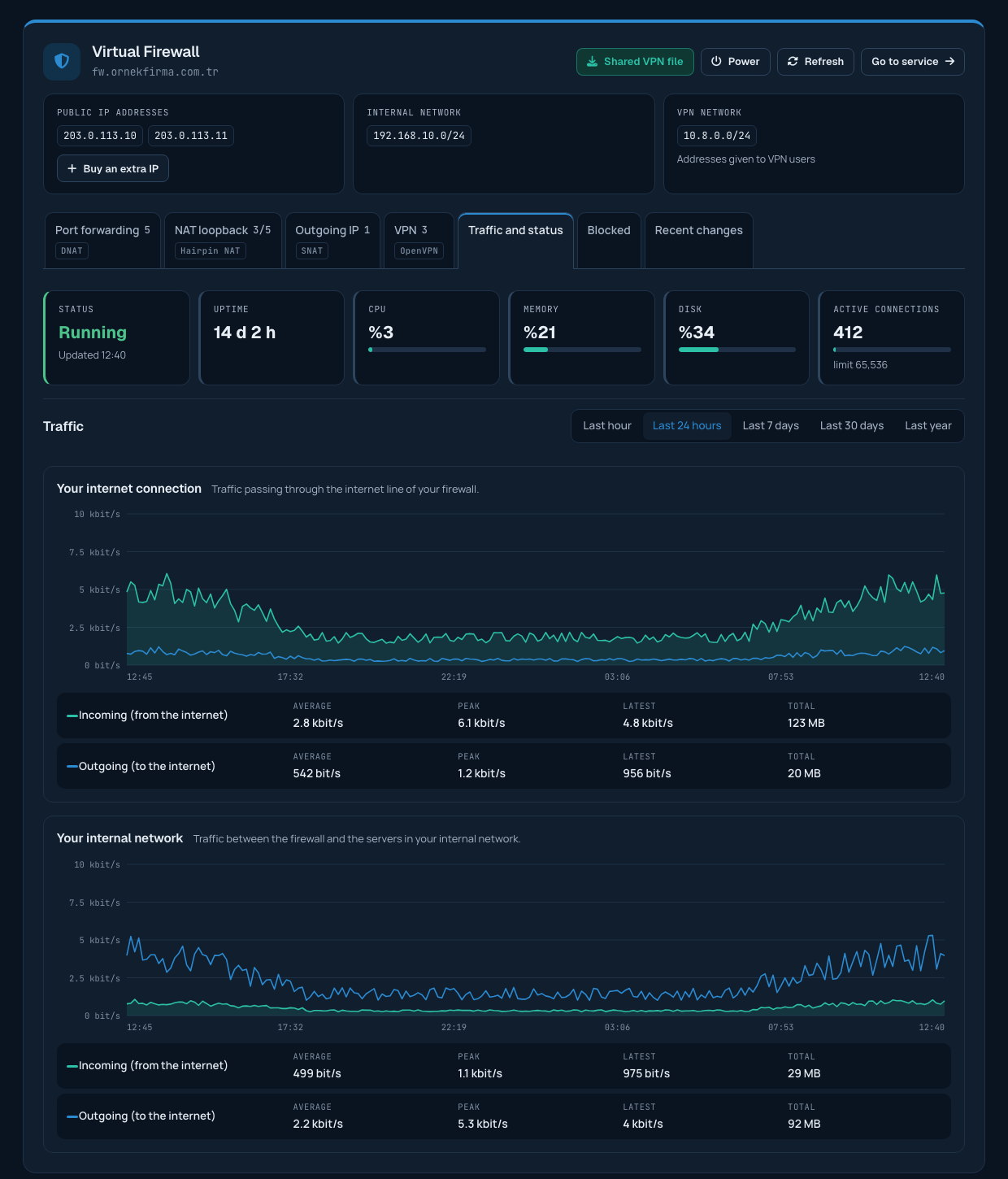
The top of the tab shows the current state of your firewall:
- Status: whether the firewall is running and has an internet connection.
- Uptime: the time since the last restart.
- CPU, memory and disk: the firewall's resource usage.
- Active connections: the number of connections passing through the firewall right now and the upper limit. If the number gets close to the limit, new connections may fail; you can then open a support ticket.
Below are two traffic graphs: Your internet connection (incoming and outgoing traffic on your firewall's internet line) and Your internal network (traffic between the firewall and the servers in your internal network). You can choose the last 1 hour, 24 hours, 7 days, 30 days or 1 year; the peak and latest values of the period are shown next to the graphs.
Blocked
Your firewall only lets in connections to the ports you opened with port forwarding (and to the VPN); everything else is stopped. This tab shows today's records in two parts.
Connections to your open ports
Connections accepted today by your port forwarding rules and the VPN are listed port by port: how many connections came from which address, and whether the rule is open to everyone or only to allowed addresses. For VPN connections the result is shown too: the user who logged in, wrong password attempts, or addresses that only probed the port without trying to log in.
If you see an unknown address connecting many times, you can block it with the Block button on its row. A warning appears if ports such as remote desktop, SSH or databases are open to everyone; opening these ports only to your own addresses with allowed sources is the strongest protection.
Attempts to closed ports
All of these attempts were stopped by your firewall; you do not need to do anything. Most come from automated programs that scan the whole internet. This part shows attempts by hour, the addresses with the most attempts and the ports they tried, the most tried ports (with what they are used for) and the latest stopped attempts. The numbers are approximate: during very heavy scans not every attempt is recorded.
If your own address appears in this list, there is no rule for the port you are trying to reach, or your address is not among the rule's allowed sources; the page points this out.

IP block list
The list at the bottom of the Blocked tab shows the addresses you blocked. With Block an address you can add an IP address (198.51.100.25) or a network (198.51.100.0/24, at most /16) with a description.
- Blocked addresses cannot reach your servers or the VPN on any port, even if they are listed as an allowed source in a rule.
- Remove block lets the address reach the ports your rules allow again.
- Blocks added by our team are marked "Added by our team".
- The number of addresses you can block from the panel is limited; for more, you can open a support ticket.
