






Virtual Firewall
Connecting to the VPN (Windows, macOS, iOS, Android, Linux)
This guide explains step by step how to connect to your firewall's VPN from a computer or a phone. You can send the link to this page to your employees or anyone who will use the VPN; no other information is needed for setup. The connection uses OpenVPN's free OpenVPN Connect app.
Before you start
You need two things:
- VPN configuration file (.ovpn): a small file that describes how to connect to your firewall. It may have been sent to you by email, or, if you are authorised, you can download it from the client area with the first step below.
- Your username and password: set when your VPN user was created. If you do not know them, ask the person who manages the firewall.
There are two kinds of file:
- Personal VPN file: for a single user; the username is already in the file and OpenVPN Connect asks only for the password when connecting.
- Shared VPN file: the same for all users; the username and password are asked when connecting.
This file gives access to your network; keep it only on the devices that will connect and do not share it with others.
1. Download the configuration file
This step is for the authorised person with access to the client area. If the file has already been sent to you, go to the second step.
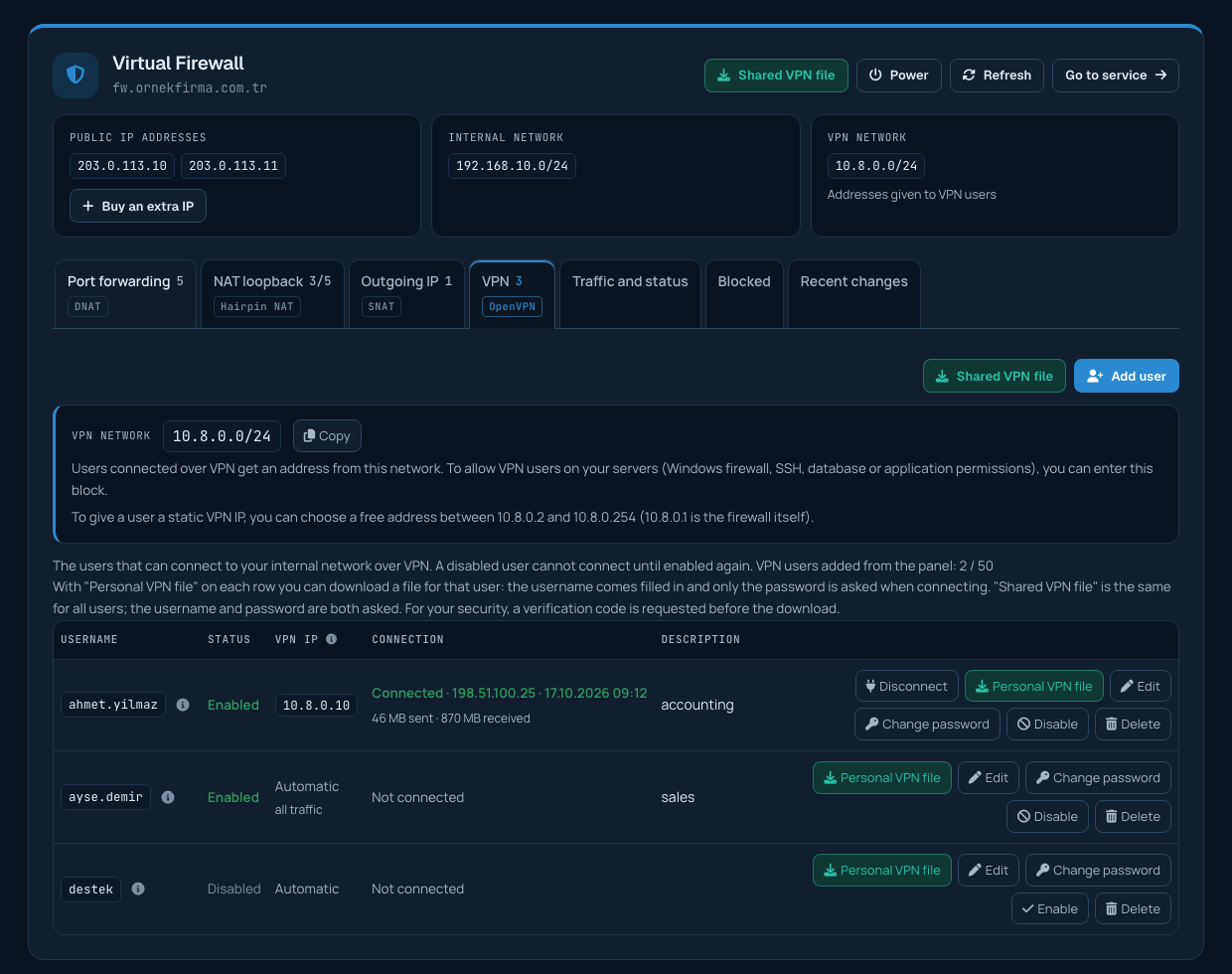
In the client area, open Services > Firewalls, click Manage firewall on your firewall's row and go to the VPN tab. Click Personal VPN file on the user's row, or Shared VPN file at the top of the tab (the shared file is also on your service's page). For your security, a verification code is sent to your mobile phone (or, if needed, your email address); after you enter it, the file downloads. The file is created automatically with your firewall's current settings.
2. Install the app and import the file
Go to the heading for your device.
Windows
- Windows 10 or Windows 11 (64-bit) is required. Download OpenVPN Connect for Windows from openvpn.net/client (it leads to the Microsoft Store; you can also download the .msi installer from the same page).
- Start the installation and accept the licence agreement. If Windows asks for administrator permission, click Yes; when installation finishes, click Finish.
- Open OpenVPN Connect from the Start menu or from its icon at the right of the taskbar.
- Import the .ovpn file. The easiest way is to double-click the file or drag it onto the app window. You can also do it from inside the app: on the Import Profile screen, choose Upload File and select your file.
- Click OK in the confirmation window. The profile is added to My Profiles.
Mac
- Download OpenVPN Connect for macOS from openvpn.net/client, choosing the one for your Mac's processor (Apple Silicon or Intel). macOS 12 or later is required.
- Open the installer, go on with Continue and accept the licence agreement. Enter your Mac password if asked; click Close when installation finishes.
- Open OpenVPN Connect from the Applications folder. On first launch macOS may ask you to allow the app's system extension and to let it add VPN configurations; allow them. These permissions are needed to connect.
- Double-click the .ovpn file or drag it onto the app window; you can also use Upload File on the Import Profile screen inside the app. Click OK in the confirmation window.
iPhone and iPad
- Install OpenVPN Connect (developer: OpenVPN Inc., free) from the App Store. iOS and iPadOS 15 or later is required.
- Save the .ovpn file somewhere your phone can reach, for example iCloud Drive or a folder in the Files app.
- Open OpenVPN Connect and accept the data usage policy.
- On the Import Profile screen, tap Upload File, choose your file and tap OK on the confirmation screen.
Android
- Install OpenVPN Connect (developer: OpenVPN Inc.) from Google Play.
- Download the .ovpn file to your phone (for example to the Downloads folder) or save it to a cloud storage such as Google Drive.
- Open OpenVPN Connect and accept the data usage policy.
- On the Import Profile screen, tap Upload File, choose your file and tap OK on the confirmation screen.
Linux
There is no Linux version of OpenVPN Connect; the open-source OpenVPN client is used.
- Install the package. On Ubuntu and Debian:
sudo apt install openvpn. On AlmaLinux and Rocky Linux the package is in the EPEL repository:sudo dnf install epel-release, thensudo dnf install openvpn. - To connect, run
sudo openvpn --config file-name.ovpnin the folder that holds the file. Your username and password are asked (this client does not use the username in the personal file, so you need to type it as well). - The connection lasts as long as the window running the command stays open; press Ctrl+C to disconnect.
3. Connect
- In OpenVPN Connect, on the screen that lists your profiles, tap the switch next to your profile, or select the profile and click Connect.
- Enter your username (with the shared file) and your password. The app may offer to save the password; only save it on a device that belongs to you.
- On the first connection the operating system may ask you to allow the VPN connection (Yes on Windows; confirm on the permission screen on iPhone and Android). Allow it.
- Once connected, the app shows that you are connected and a VPN icon appears in the status bar of your phone or computer.
To disconnect, turn the same switch off or press Disconnect. Next time the profile is ready in the list; you do not need to import the file again.
Checking the connection
Once connected, you can reach the servers behind your firewall by their internal addresses (for example with remote desktop to 192.168.13.10). Your client area administrator sees the user's status as "Connected" on the VPN tab.
Troubleshooting
- Authentication error (a message such as "Authentication failed" in the app): check the username and password. If the password changed recently, delete the old saved password in the app or remove the profile and import it again. If the problem continues, your administrator can check that the user is "Enabled" on the VPN tab and set a new password with Change password if needed.
- The profile cannot be imported: make sure the file has the .ovpn extension and was saved completely from the email or messaging app. If needed, download the file again from the client area.
- Security or encryption error on the phone (for example "no shared cipher"): in OpenVPN Connect's settings, set Security Level under Advanced Settings to Legacy and try again.
- Connected but cannot reach internal servers: the internal server's own firewall (for example Windows Firewall) may not allow connections from the VPN network. The VPN network's address block is shown at the top of the VPN tab in the client area.
- Still going out to the internet with my own connection: this is normal if the "route all traffic through the VPN" option is off for the user; only traffic to your internal network goes through the VPN. If going out with the fixed IP is needed, your administrator can turn this option on.
- Cannot connect at all: the network you are on (hotel, public network, some company networks) may be blocking VPN connections. Try with your phone's mobile data or from another network. If the problem continues, you can open a support ticket from the client area.
OpenVPN® is a registered trademark of OpenVPN Inc.
