






Nextcloud
Installing the Desktop App on Windows
The Nextcloud desktop app keeps the files on your Nextcloud server in sync with a folder on your computer. When you change a file on the computer it is sent to the server automatically, and when it changes on the server it is brought to your computer.
Requirements
Windows 10 (1809 or later) or Windows 11, 64-bit. Your Nextcloud address, username and password.
Downloading and installing the app
- Open nextcloud.com/install and, under Nextcloud Files, download the desktop app for Windows (.msi file).
- Double-click the downloaded file and follow the steps of the setup wizard.
- When setup finishes, the app opens and the account wizard starts.
Adding your account
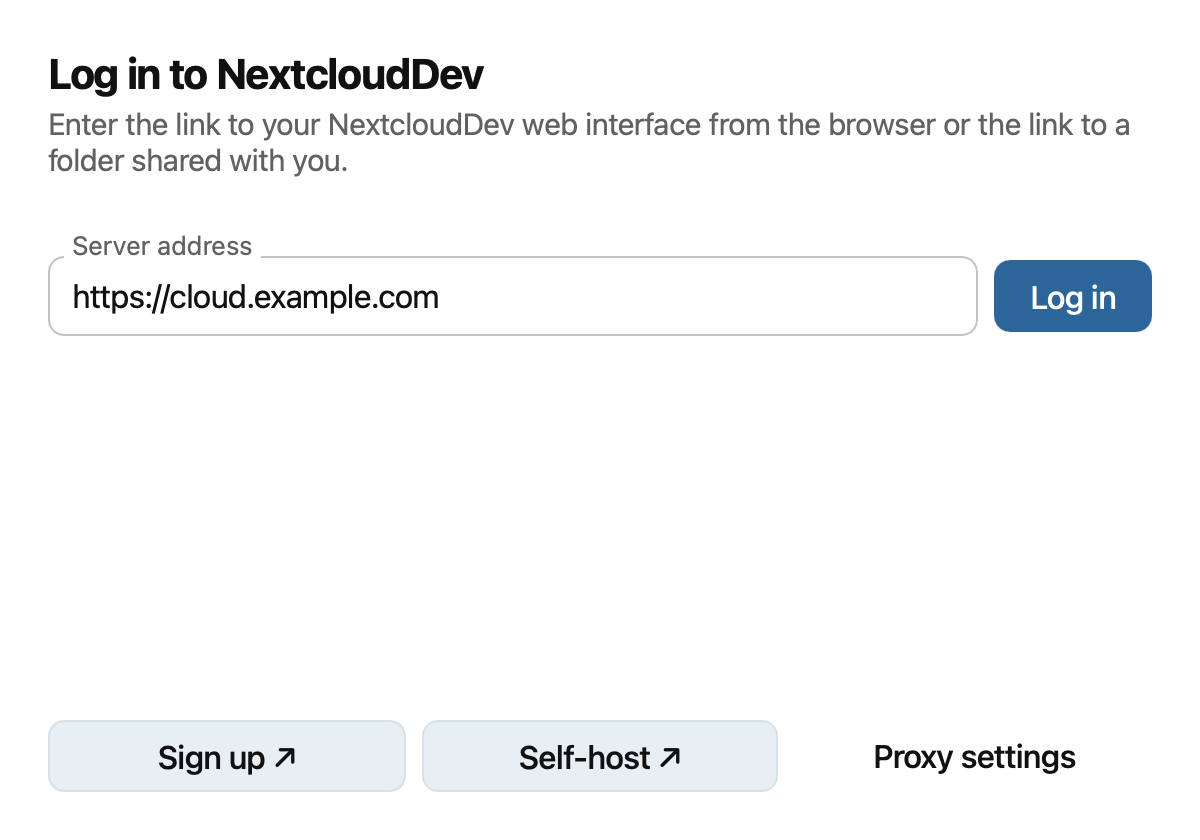
- When the app opens, enter your Nextcloud address; it is the same address you use in the browser (example: https://bulut.sirketiniz.com). Then click the login button.
- The Nextcloud login page opens in your browser. If it does not, you can open it with the button in the app.
- Log in with your username and password. If two-factor authentication is on, enter the verification code as well.
- You are asked to give the app access; click Grant access and return to the app.
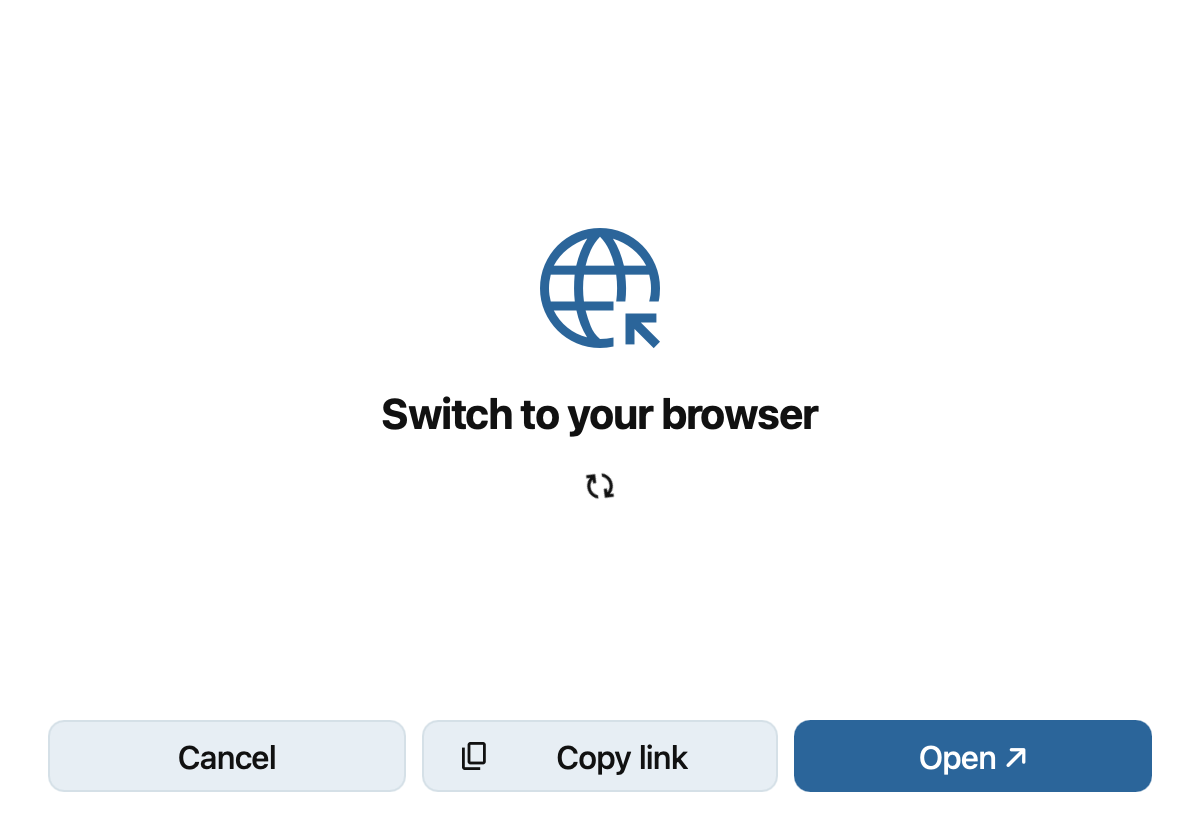
With this method your password is not stored in the app; the app receives a password for this device only. If you lose the device, you can remove its access from the device list on the Settings > Security page in Nextcloud.
Choosing what to sync
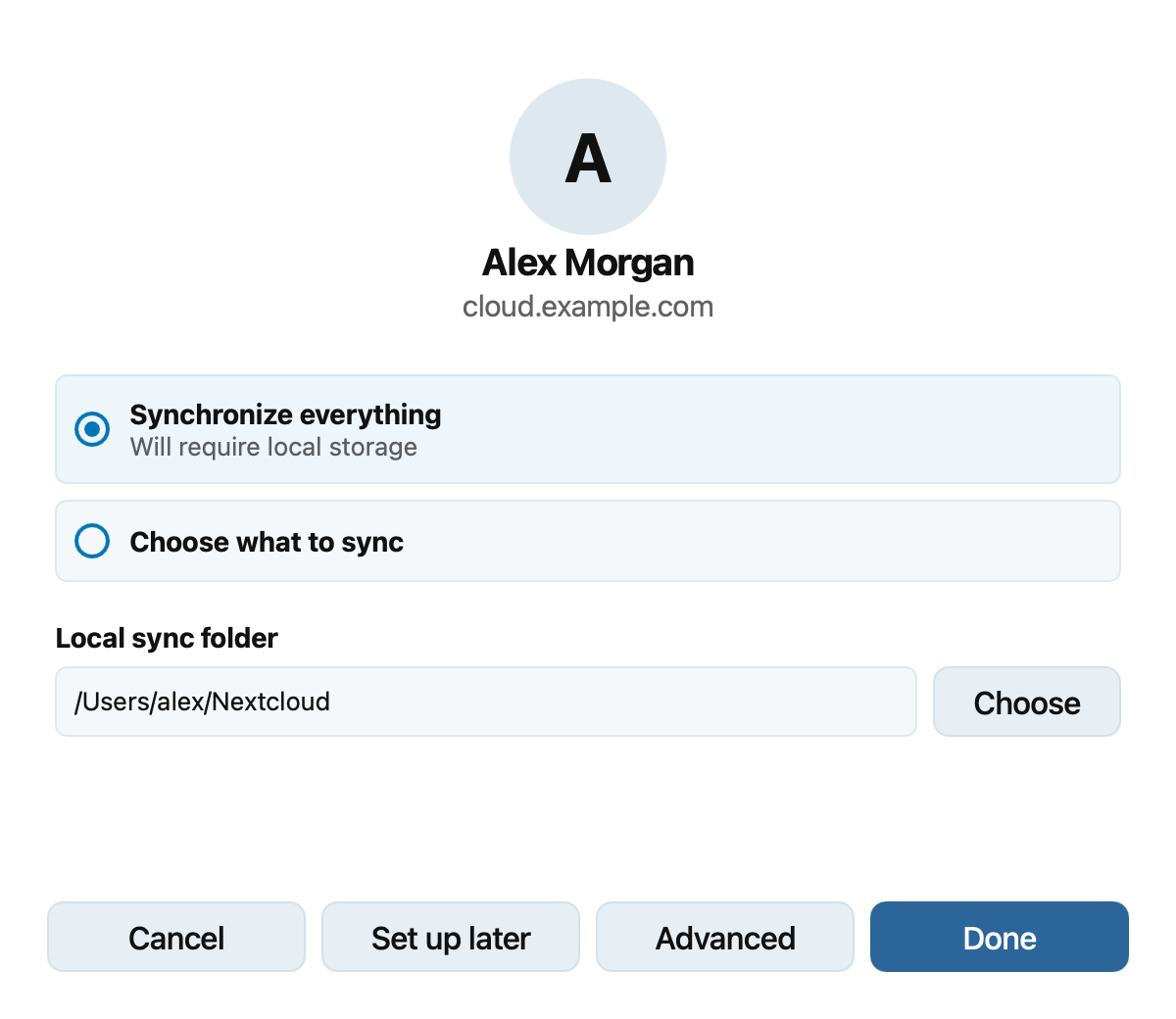
After logging in you can choose to Synchronize everything or Choose what to sync. If your server holds a lot of data, choosing only the folders you need saves space on your computer. With the Choose button beside Local sync folder you can change where the files are stored on your computer. Under Advanced you can ask to be asked before large folders are synced. Syncing starts after you choose.
Everyday use
- The Nextcloud folder appears in File Explorer; just copy your files into it.
- Icons on files and folders show their state: a green check mark means synced, blue means syncing, a red cross means an error and a warning sign means excluded from sync.
- Right-click a file and use the Nextcloud menu to open the sharing options or create a share link.
- The Nextcloud icon at the right of the taskbar (notification area) shows recent activity and opens the settings. In the settings you can make the app start with Windows, add another account and change the folders to sync.
- The app checks for new versions and updates itself automatically.
If you cannot connect
- Make sure you entered the address with https://, exactly as you open it in the browser.
- If your company network uses a proxy server, you can enter it in the proxy settings on the login screen.
- If the problem continues, you can open a support ticket from the client area.
Screenshots: Nextcloud user manual, © Nextcloud GmbH and Nextcloud contributors, used unchanged under the CC BY 3.0 licence. They were taken on macOS; windows may look slightly different on Windows.
