






Verinomi Panel: Using the Console on a VDS Server
You can reach the screen of your VDS server from the client area, right in your browser. The console is like plugging a monitor and keyboard into the server: it works even without a network connection. If a firewall rule, a wrong network setting or a changed SSH or remote desktop port stops you from connecting, you can sign in from the console and fix the problem yourself.
Opening the console
- In the client area, open your VDS server from the Services page.
- In the Server status section, click Console.
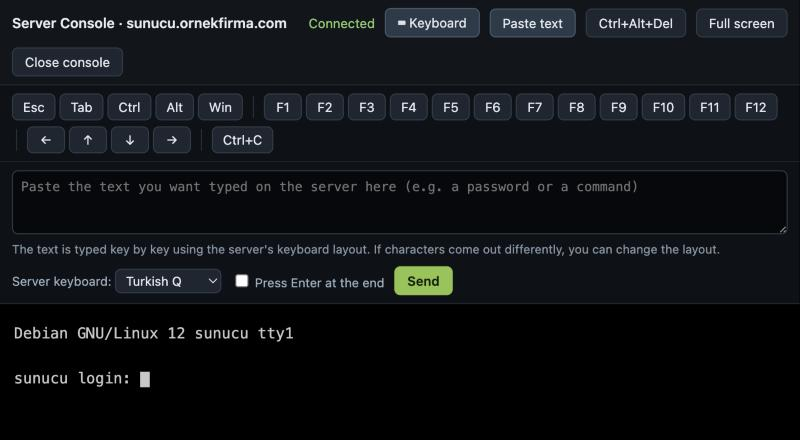
- The console opens in a separate window. The top bar first shows Connecting…; once connected it shows Connected and the server screen appears.
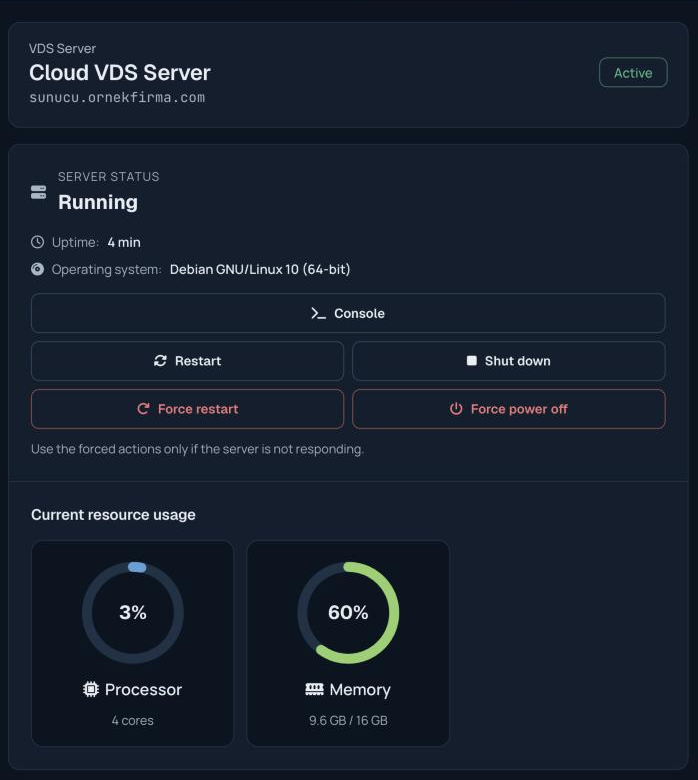
The Console button is shown only while the server is running. If your server is off, start it first with Power on; it usually takes 1-2 minutes to boot. The console can only be opened for active services. If your browser blocks pop-up windows, the console opens in a new tab.
If the screen is black, the server may be in screen saver mode; pressing a key or moving the mouse is enough.
Signing in
On Linux servers, type your username (usually root) and your password at the login prompt. On Windows servers, open the sign-in screen with the Ctrl+Alt+Del button in the top bar, then enter your Administrator password. If you press this key combination on your keyboard, your own computer catches it, so you need to use the button.
Your server password is in the Server details section of your service page. Instead of typing a long password by hand, you can use the Paste text feature described below.
Key bar
The Keyboard button opens a bar with keys that are hard to send from your keyboard: Esc, Tab, F1–F12, the arrow keys, Ctrl+C, and Ctrl, Alt and Win. Ctrl, Alt and Win stay pressed: click them first, then the key to press together with them (for example Alt, then F4). A pressed key turns green and is released together with the next key.
Pasting text and keyboard layout
You cannot paste into the console directly from your computer. The Paste text button opens a box; paste a password or command there and click Send, and the text is typed on the server key by key. If Press Enter at the end is ticked, Enter is sent after the text.
The text is typed according to the server keyboard layout. Under Server keyboard you can choose Turkish Q or English (US); your choice is saved in your browser. If characters come out differently (for example another sign instead of @), you can change the layout and try again.
Full screen, phone and connection
- The Full screen button spreads the console over the whole screen; press Esc to leave it.
- On phones and tablets a Phone keyboard button appears; tap it to open your device keyboard, and what you type goes to the server.
- If the connection drops, the top bar shows Disconnected; you can open the console again with Reconnect.
- When you are done, you can close the connection with Close console and close the window.
Security
The console can only be opened from the account the service belongs to. Each opening is recorded on the Activity history page. The console connection is single-use; sharing the console address with someone else does not let them in.
Signing in from the console needs the server's own username and password; opening the console does not sign you in to the server. We recommend signing out on the server as well when you are done (exit on Linux, Sign out on Windows).
If the console does not open
- If there is no Console button on your service page, your server may be off; start it first.
- If the console says it could not be opened right now, you can try again in a few minutes.
- If the problem continues, you can open a support ticket from the client area.
