






Free Parking Page and DNS Management
For a domain registered with us that has no linked service, you can open a parking page and manage DNS records from the panel at no extra cost.
What Is a Parking Page?
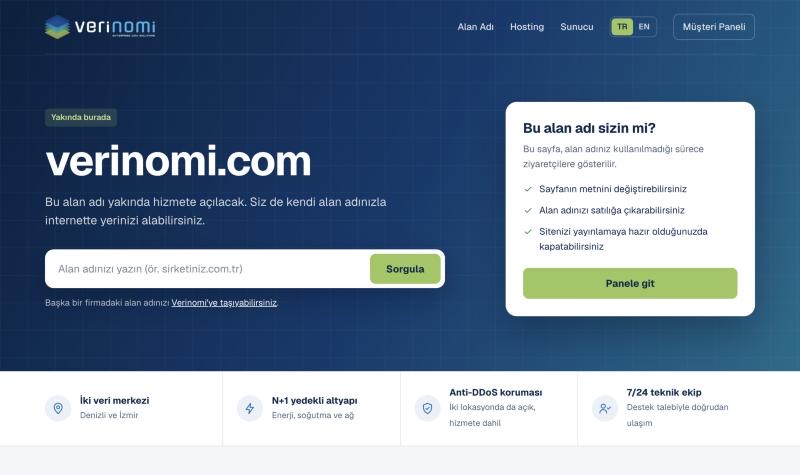
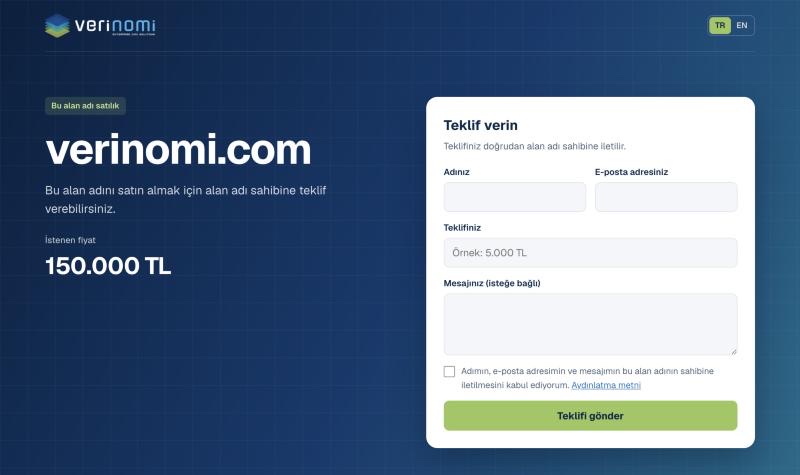
If you are not using your domain yet, it shows visitors a page instead of an error. There are two types:
- Coming soon: Shows your own text and, if you wish, a contact e-mail. If you write no text, a ready-made page with Verinomi information appears.
- For sale: Shows that the domain is for sale, with a price if you wish. Visitors can send offers through a form.
The page opens in Turkish and English, and the SSL certificate is obtained automatically.
When Buying or Transferring a Domain
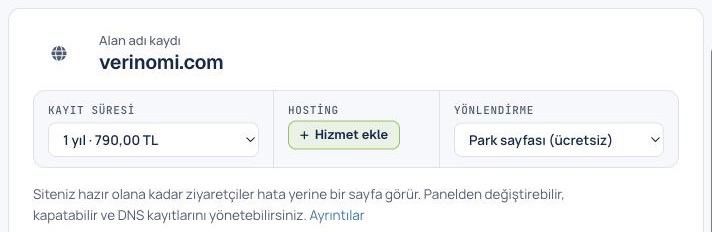
On the domain settings step of your order, each domain has a Points to choice: Parking page (free), Verinomi nameservers or My nameservers. Verinomi nameservers are selected by default; you can change this. If you choose the parking page, it turns on by itself when the domain becomes active and you receive an e-mail. If a domain you are transferring has a working website or e-mail, do not choose the parking page.
If your order has more than one domain, you can choose for each one separately. This choice does not appear for a domain with hosting; it uses the nameservers of the hosting service.
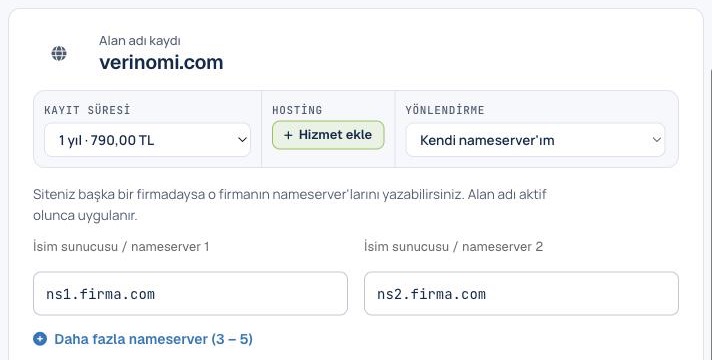
With My nameservers, fields open under that domain. Enter at least two different nameservers and at most five. They are applied when the domain becomes active; if they cannot be set, you receive an e-mail and can update them on the domain page.
How Do I Turn It On?
- Open your domain under Domains in the client area.
- Go to the Parking Page tab.
- Choose the page type and add text if you wish.
- Press Turn on and confirm.
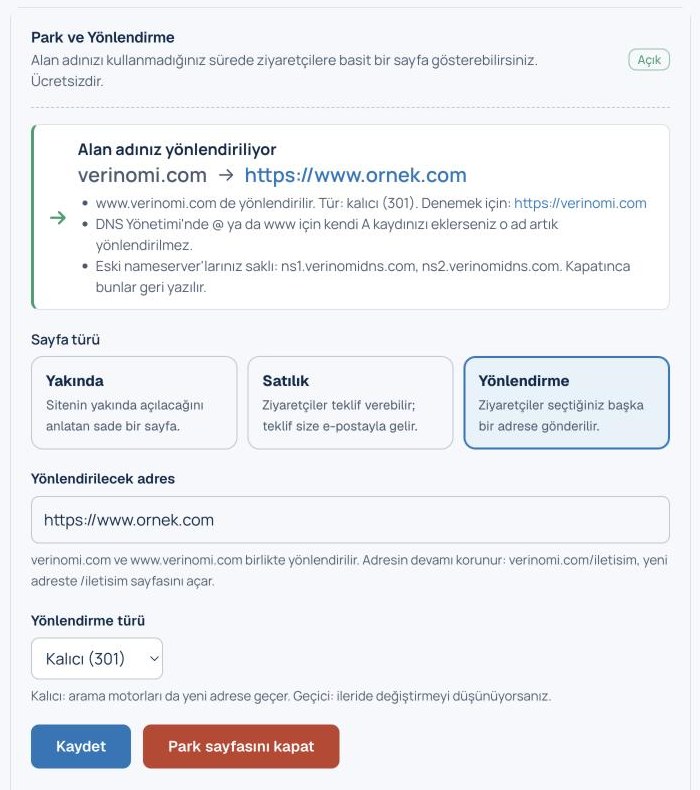
Your nameservers become park1.verinomidns.com and park2.verinomidns.com, and the previous ones are kept. The page usually appears within minutes; for .tr domains it can take up to 12 hours to appear across the internet.
What Should I Check First?
- If your domain uses a website or e-mail elsewhere, those records stop working when the nameservers change. Records are not moved automatically; you need to add them in the DNS Management tab right after turning it on.
- A parking page cannot be turned on for a domain linked to one of your services with us.
- If DNSSEC is on for the domain, you need to remove the DS records in the DNSSEC tab first.
Offers From the For Sale Page
Offers are sent to your account e-mail and listed on the Parking Page tab. We do not act as an intermediary and do not verify offers; you agree on payment and transfer with the buyer. If the buyer is a Verinomi customer, you can transfer the domain from the panel.
DNS Management
You can add, change and delete records on the DNS Management tab of a domain on our parking servers. Use @ as the name for the domain itself. The form changes with the type you choose; MX, SRV and CAA details have their own fields.
| Type | Purpose | What you enter |
|---|---|---|
| A | Points a name to an IPv4 address | Value: 193.162.43.10 |
| AAAA | Points a name to an IPv6 address | Value: 2a0f:cb00::10 |
| CNAME | Points a name to another name | Target: site.verinomi.com |
| MX | Sets the mail server | Priority: 10, Mail server: mail.verinomi.com |
| TXT | Text records such as SPF or verification | Value: v=spf1 mx -all |
| CAA | Sets which authority may issue certificates | Tag: issue, Authority: letsencrypt.org |
| SRV | Sets the server and port of a service | Name: _sip._tcp, Priority: 10, Weight: 5, Port: 5060, Target: sip.verinomi.com |
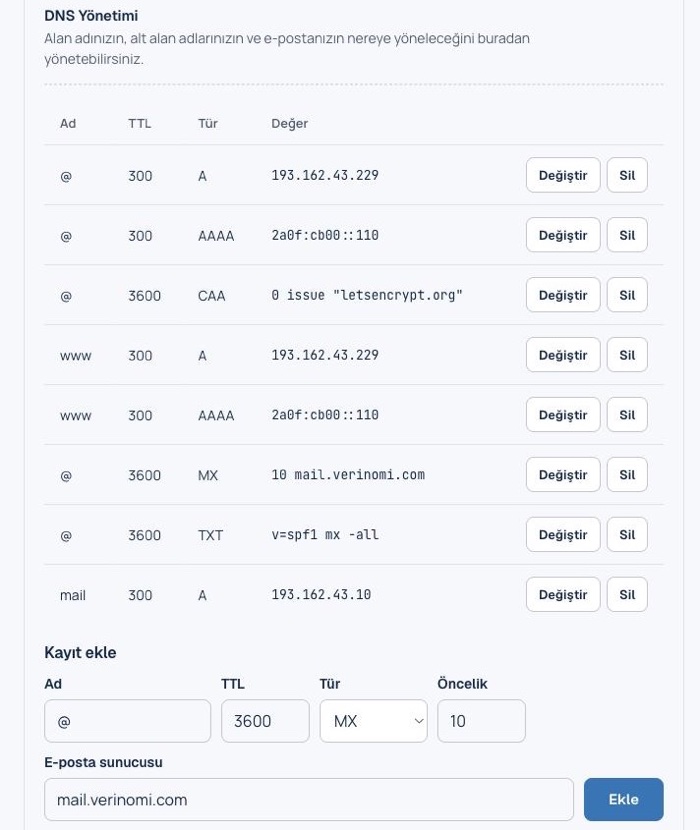
Changing a Record
Press Change next to a record and its details fill the form below. Edit them and press Save, or press Cancel to clear the form. If the new value breaks a rule, nothing is written and the old record stays.
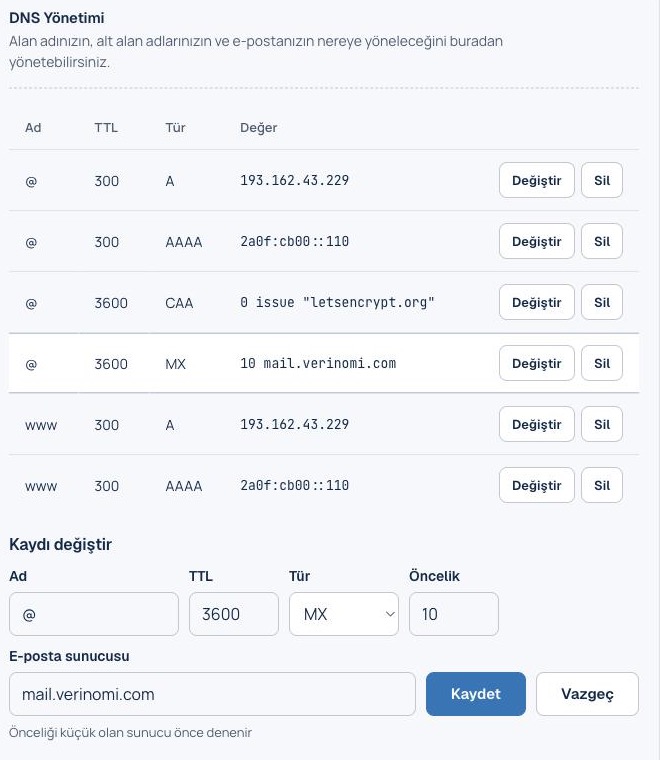
Record Rules
Records are checked against DNS standards, and the reason appears on screen if an entry is wrong:
- A and AAAA records cannot use private or reserved IP addresses.
- CNAME cannot be used on the domain itself (
@) or together with other records of the same name. - An MX or SRV target cannot be an IP address or a name that has a CNAME record.
- A name can have only one SPF record. A TXT record can be at most 2000 characters and cannot contain non-ASCII characters, quotes or backslashes.
- TTL must be between 60 and 86400 seconds. A domain can have at most 60 records.
A change can take as long as its TTL to appear everywhere.
Records Used by the Parking Page
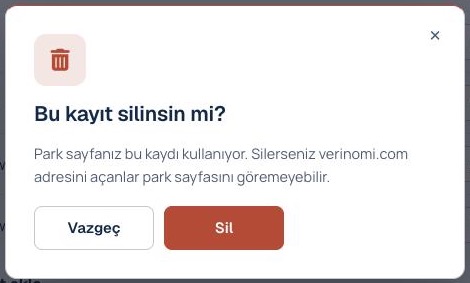
The parking page uses the A and AAAA records of @ and www. The panel warns you when you delete them or point them elsewhere; if you confirm, visitors may not see the parking page.
How Do I Turn It Off?
Press Turn off on the Parking Page tab. Your previous nameservers are restored; the parking page and your DNS Management records are deleted. If you move the nameservers elsewhere from the panel, parking also turns off by itself. If your domain is cancelled, deleted or transferred away, its parking page and records are removed from our servers.
